 AI WORLD HQ
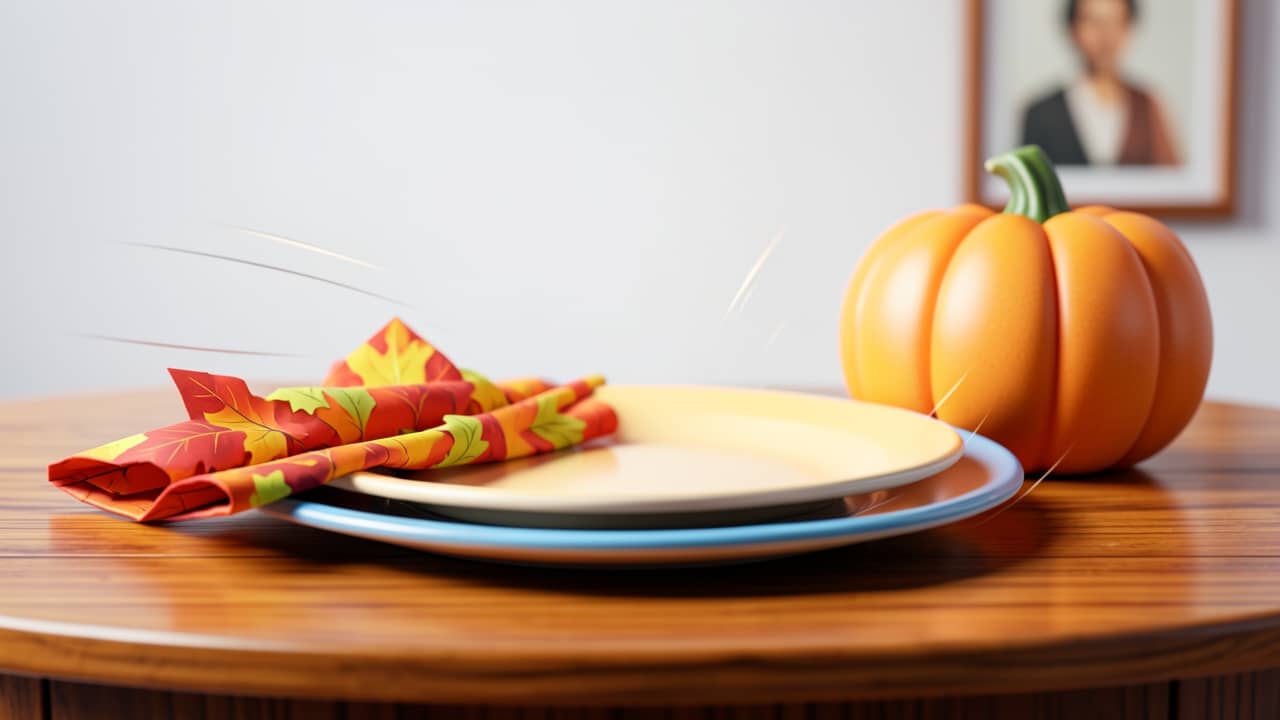
Planning a holiday dinner usually means a group chat, a dozen questions about who is bringing what, and a half-finished text message. A nicely designed invitation can settle the details in one glance. This guide shows you how to make one in about the time it takes to write a text.
What you need before you start
Picsart Flow uses what it calls no-code workflows. A workflow is a ready-made series of steps that the tool runs for you, so you fill in the blanks instead of writing code. You will need:
- Access to Picsart Flow. The announcement does not spell out account or plan details, so check the official Picsart Flow site for what your account includes.
- One photo of something that fits your party. A dish you are bringing or a seasonal object, such as a pumpkin, works well.
- Your event details: a headline, who is hosting, the date and time, the address, and a reply-by date.
Step 1: Choose a style
Picsart Flow offers five Thanksgiving invitation workflows. Each one turns your photo into a different kind of artwork:
- Friendsgiving Feast Invitation and Animation: your dish becomes a brush-ink drawing. Good for a casual gathering with friends.
- Thanksgiving Dinner Invitation Creation: your photo becomes layered paper-cut art. Good for a family dinner.
- Thanksgiving Potluck Invitation Designs: your dish is painted in a soft style. Good for a potluck where people need to sign up for dishes.
- Thanksgiving Potluck Invitation Video: one photo becomes a set of five harvest icons, with a tall version that works as a flyer.
- Thanksgiving Invitation Card Design: your photo is used only for its colors, and the design is drawn in those colors.
Pick the one that matches the kind of party you are throwing.
💬 Example: if you are hosting a sit-down dinner for relatives, the papercraft dinner style is a natural fit.
You'll know you're on track when you have one workflow in mind and can say in a sentence why it suits your party.
Step 2: Upload your photo
Take a clear photo of your subject before you open the workflow. Shoot from above or at a slight angle, with one main subject in the frame. A single pie on a plate is a better choice than a crowded table, because the tool needs one clear subject to redraw.
Once you upload it, the workflow removes the background and redraws the subject in the artistic style you picked. The shape of the dish or object stays the same.
💬 Tip: if your photo has a messy background, crop it closer to the subject before you upload.
You'll know it worked when the preview shows your dish or object redrawn in the chosen style, without the original background.
Step 3: Fill in the event details
Every workflow has a section for your event details. Fill in the lines your party needs and delete the rest. Picsart Flow lists these as common lines:
- Headline: the name of the gathering, such as "Friendsgiving feast" or "Gather & give thanks."
- Host or supporting line: who is hosting, or one short line that sets the mood.
- Date and time: the day and the hour dinner starts.
- Location: the street address or venue.
- RSVP: the date you want guests to reply by. This matters most for a potluck, where dishes need planning.
The tool prints exactly what you type. If you leave a line empty, the layout closes the gap instead of adding filler text, so you do not have to worry about stray words appearing on the card.
💬 Example headline: "Friendsgiving feast," with the supporting line "Good food, better company."
You'll know it worked when your text appears in the preview exactly as you typed it, with no extra wording added.
Step 4: Run the workflow and check the layouts
Run the workflow. Depending on the style, you will get two layouts or three sizes. Picsart Flow's examples include:
- 4:5 (taller than it is wide, the shape of a printed card)
- 1:1 (a square, which fits a feed post)
- 9:16 (a tall phone-screen shape, good for a story)
Look at each layout and check the spelling, the date, the time, and the RSVP date. Those are the details guests will act on, so double-check them before you send anything.
💬 Tip: save the 4:5 version for printing and the 9:16 version for your phone.
You'll know you're on track when every layout shows the same correct details and the artwork looks clean.
Step 5: Share the animated version
Most of these workflows also create a short video. Picsart Flow describes it as a silent 720p clip, which means it has no sound and a standard-definition picture. The clip lasts about 4 to 6 seconds. In the examples, the artwork appears first, then the text fades in.
Send the video to your group chat as a save-the-date, and keep the still image for the fridge or a printed card.
💬 Example message: "Save the date! Thanksgiving dinner at our place, RSVP by November 15."
You'll know it worked when the clip plays on your phone and the text is readable on the last frame.
Common mistakes to avoid
- Mistake: using a busy photo. A crowded table turns into clutter in the artwork. Fix: use one clear subject, cropped close.
- Mistake: writing a long headline. Long text can crowd the layout. Fix: keep the headline to three or four words, such as "Gather & give thanks."
- Mistake: forgetting the RSVP date. Guests may not know when to reply, especially for a potluck. Fix: always fill in the RSVP line, and pick a date a week or more before the party.
Wrap-up
Picsart Flow's Thanksgiving workflows turn one photo and a handful of details into a finished invitation and a short video. Choose a style, upload a clear photo, fill in your event details, and check each layout before you send it. Your next step: open Picsart Flow today, pick one style, and make a test invitation for your next gathering, even if the party is still weeks away.