 AI WORLD HQ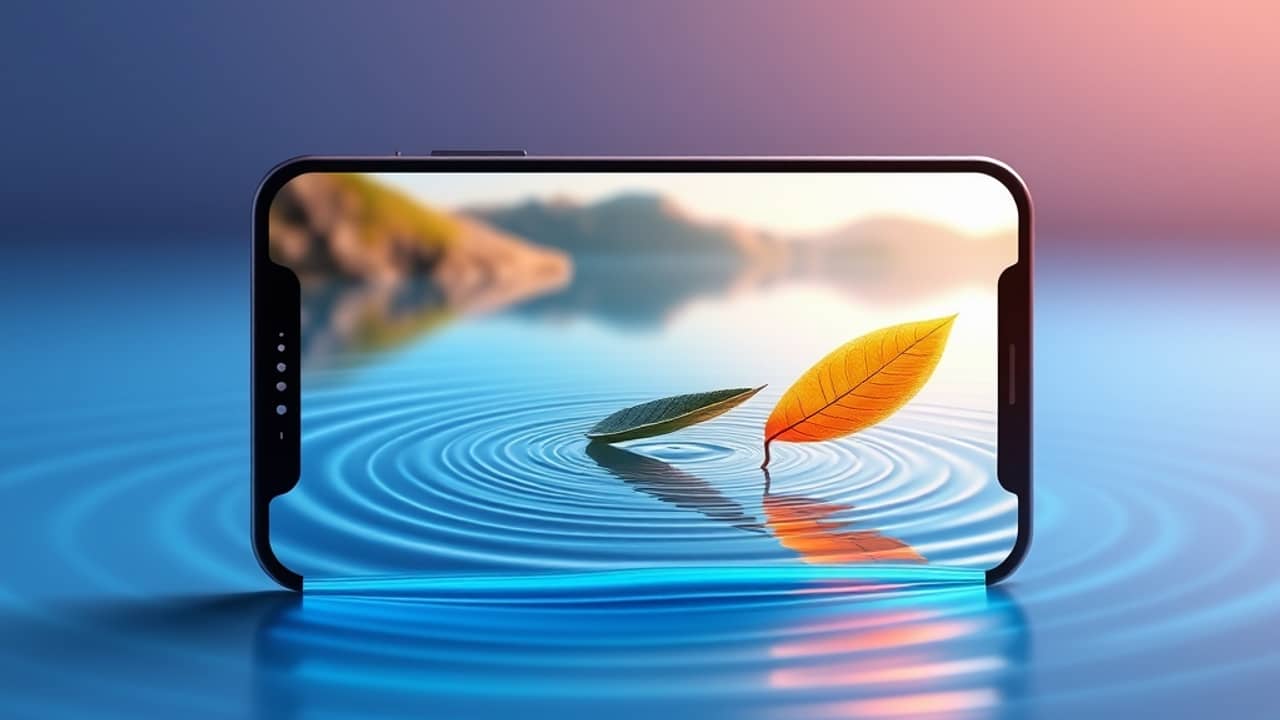
Maybe you have a great photo from a weekend trip and wished it could just move a little — a leaf drifting, water rippling, a slow pan across the scene. That used to mean either a video camera or hours of editing. Now an AI can do it in seconds, if you know which tool to open.
What Picsart Flow actually is
Picsart Flow is Picsart's newer AI workspace — a canvas-style environment where you chain together AI-powered steps inside one project. Think of a canvas as a single working surface where different tools connect, like a recipe card for your image. Instead of opening separate apps for editing, generating, and animating, you build a small chain on one canvas.
The big draw is that several of those steps can call Google's Veo, an AI model that generates short video clips from either a text description or a still image. Picsart doesn't train its own video model — it gives you a simple interface that hands your input to Veo and brings the result back.
Why templates matter more than the model
The interesting thing about Picsart Flow isn't really Veo itself. Veo is available in other places. What Flow adds is the canvas around it — pre-built templates that decide what information gets passed to the model before generation starts.
In practice, a template might:
- Send a single photo straight to the video step, so the AI animates that exact frame
- Rebuild the frame first — for example, extending the edges of a landscape — and then animate the wider scene
- Generate a fresh image from a prompt, then send that new image into the video step
The model is the same. What changes is the recipe that hands it your idea.
Three common things people do with these templates
Without naming specific template names (those change often), here are the kinds of projects users reach for:
- Animating a photo: Upload a portrait, pet, or product shot and get a short clip where the subject moves naturally. Useful for social posts where a still image gets scrolled past.
- Prompting text-to-video from scratch: Write a sentence like "a paper airplane flying over a city at sunset" and let the template build a clip from nothing.
- Image-to-video with reframing: The template first expands the borders of your image so it looks like a wider shot, then animates the whole wider scene. Good for cinematic-looking landscape or product shots.
A realistic starting checklist
Before you open Picsart Flow for the first time:
- Have a clear, well-lit photo ready on your phone. The AI animates what it sees, so blurry inputs become blurry videos.
- Decide what you actually want it to do — "make the water move" beats "make it look cool."
- Pick the simplest template first. More complex chains have more places to break.
- Plan to generate more than one version. AI video rewards a few attempts — the first try is rarely the best one.
Wrap-up
Picsart Flow's Veo templates aren't magic, and they aren't for everyone. But if you have one good image and a vague idea of how it should move, they're one of the shortest paths from "I wish this moved" to a finished clip. Start with one photo, one template, one short prompt — and see what you actually get before you build anything more complicated.