 AI WORLD HQ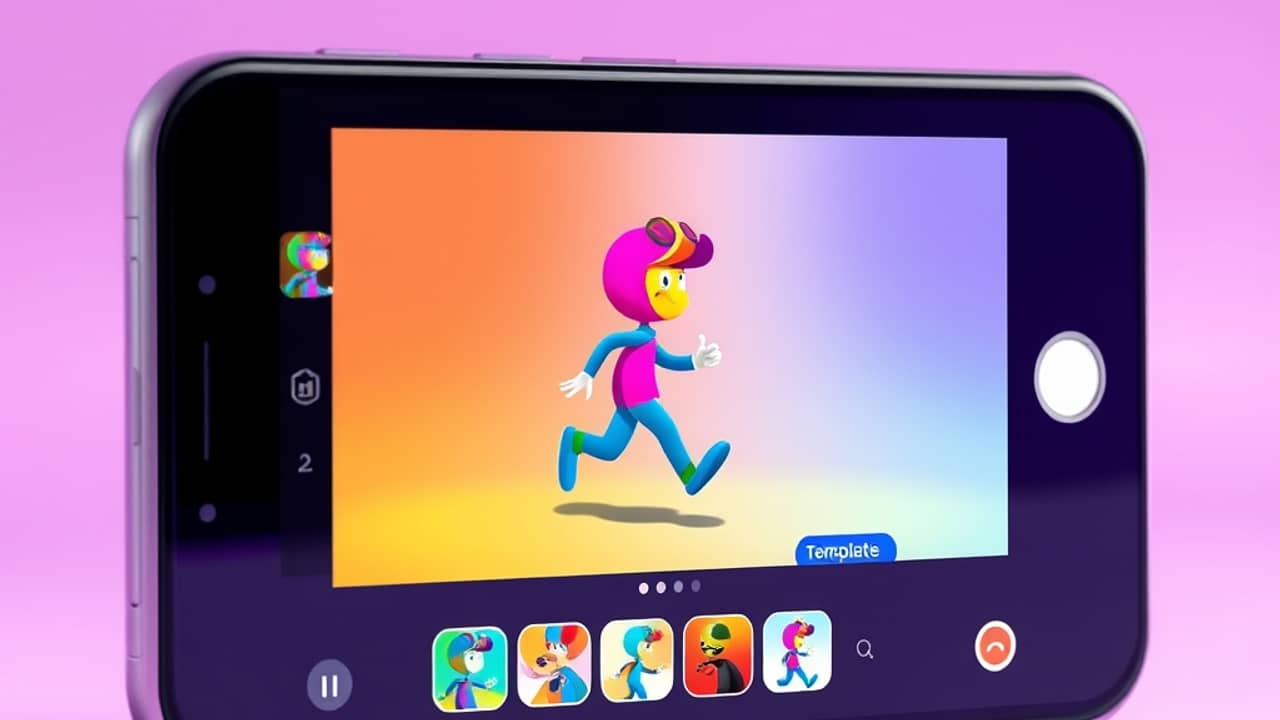
You've got a headshot on your phone and ten minutes to spare. By the end of this guide, that headshot will be a moving cartoon character — walking, blinking, doing whatever the template decides. It's a fun weekend project, and once you've done it once, you'll understand how these "image-to-video" tools work in general.
What Picsart Flow actually does
Picsart is a phone and web editor (think Photoshop, but friendlier, made for non-designers). Flow is their name for a series of ready-made AI templates — little one-click workflows that bundle several AI steps together. The cartoon-selfie template bundles two:
- Image generation — the AI reads your face from the photo and draws you as a full-body cartoon character in a chosen style. (Image generation means the AI creates a brand-new picture based on your photo, rather than editing the photo itself.)
- Image-to-video animation — the AI takes that new cartoon picture and adds motion: a few seconds of walking, looking around, hair moving, that kind of thing. (Image-to-video means starting with a still picture and producing a short video from it.)
Both steps sit inside the same editor on the same canvas, so you can preview and re-run each one without leaving the screen.
What you'll need before you start
Before you tap anything, get these in place — it'll save you the frustration of getting halfway through and realizing you're missing something.
- A Picsart account. Free works. You can sign in with email, Google, or Apple.
- The Picsart mobile app (iOS or Android) or the web editor at picsart.com. The mobile app tends to be smoother for this template.
- One clear, well-lit photo of a face. Front-facing, no sunglasses, no heavy hat, eyes visible. The better the input, the more the cartoon actually looks like you.
- A paid Picsart subscription for the highest quality output and watermark-free downloads. The free tier lets you try the template, but the final export usually has a Picsart watermark (a small logo stamped on the image) and a lower resolution. The exact plan name and price change often — check Picsart's official pricing page for current details.
Got all that? Good. Let's go.
Step 1 — Open the template in the editor
Open the Picsart app, tap the plus (+) button at the bottom of the screen to start a new project, then look for "AI Tools" or "Flow" in the menu. Search for the template called something like "Cartoon yourself" or "AI portrait animation."
When you tap it, the editor will open with a single big canvas (your workspace — the main editing area in the middle of the screen) and a panel on the side that lists the two steps in order. You'll see a button to upload your photo.
💬 Tip: use a photo where your face takes up most of the frame, with even lighting and a simple background. Busy backgrounds confuse the AI and you'll get stranger results.
You'll know it worked when you see your uploaded photo appear on the canvas and the first step — the image generation step — is highlighted as "ready to run."
Step 2 — Run the cartoon generation
Tap the "Generate" or "Run" button for the first step. The AI will think for about 20 to 60 seconds — during this time it's analyzing your face and redrawing it as a cartoon character. You'll see a progress bar or a loading spinner.
When it finishes, the canvas will show your new cartoon version next to the original photo so you can compare. Most templates let you re-run it several times to get different results — each run produces a slightly different cartoon.
💬 If you want a different look, look for a "style" or "vibe" selector (often a row of small preview thumbnails at the bottom of the screen). Try a few before you move on. Anime, comic-book, and 3D-toon styles are common options.
You'll know it worked when you see a recognizable cartoon character on the canvas that clearly resembles you, with a full body and a background.
Step 3 — Add motion to the cartoon
Now look at the second step in the side panel — usually labeled "Animate" or "Add motion." Tap it. You'll typically get a few motion options: subtle movement (blinking, hair sway, breathing) or full-body movement (walking, turning, dancing).
Pick one and tap "Generate." This step takes longer — anywhere from one to five minutes, depending on server load (how many other people are using Picsart at the same time).
💬 Suggestion: start with the subtle movement. It's faster, looks more natural, and is less likely to glitch. Save the dramatic walking-and-waving version for your second try.
You'll know it worked when a short video preview appears in the canvas, and you can press play to see your cartoon character moving.
Step 4 — Preview and tweak
Watch the preview all the way through. Look for three common problems:
- The face doesn't look like you.
- The motion has weird artifacts (visible glitches — for example, fingers that melt together, a background that warps, or limbs that bend the wrong way).
- The style isn't what you wanted.
If any of these happen, just re-run whichever step produced the problem. You can re-run step 2 to get a new cartoon, or re-run step 3 to get a new animation. Nothing is final until you export.
Step 5 — Export and save
When you're happy with the result, tap the "Export" or "Download" button — usually in the top-right corner. The app will ask whether you want a still image (the cartoon) or a video (the animation). Pick the video to get both the moving character and a watermark-free version of the cartoon frame.
💬 File format tip: MP4 is the safest format for sharing on social media and messaging apps. Stick with the default unless you have a specific reason to change it.
You'll know it worked when the file appears in your phone's photo library or downloads folder, and you can play it back without the Picsart editor around it.
Common mistakes to avoid
- Using a group photo. The AI needs one face. With several faces, it'll guess wrong or merge features.
- Wearing sunglasses or a face mask. The AI can't see your eyes or mouth, and the cartoon will look generic.
- Skipping the re-run step. Your first cartoon is rarely the best one. Run it three or four times and pick your favorite.
- Picking a motion that's too dramatic. Long walking animations on a single still image are where you see the most weird artifacts. Subtle motion is more forgiving.
- Forgetting to check the watermark situation. On a free plan, your video will have a small Picsart logo. If that bothers you, look at the paid plans before you share publicly.
Wrap-up
You started with one photo. You ended with a short animated video of yourself as a cartoon character, made in roughly five to ten minutes, with no design skills. That's the real story here: a class of AI tools that used to require a professional illustrator and a video editor is now a one-tap template in a phone app. Try the subtle-movement version first, re-run the steps a few times until you like the result, and post it somewhere fun. Your next experiment could be the same template on a pet photo — it works for animals too.