 AI WORLD HQ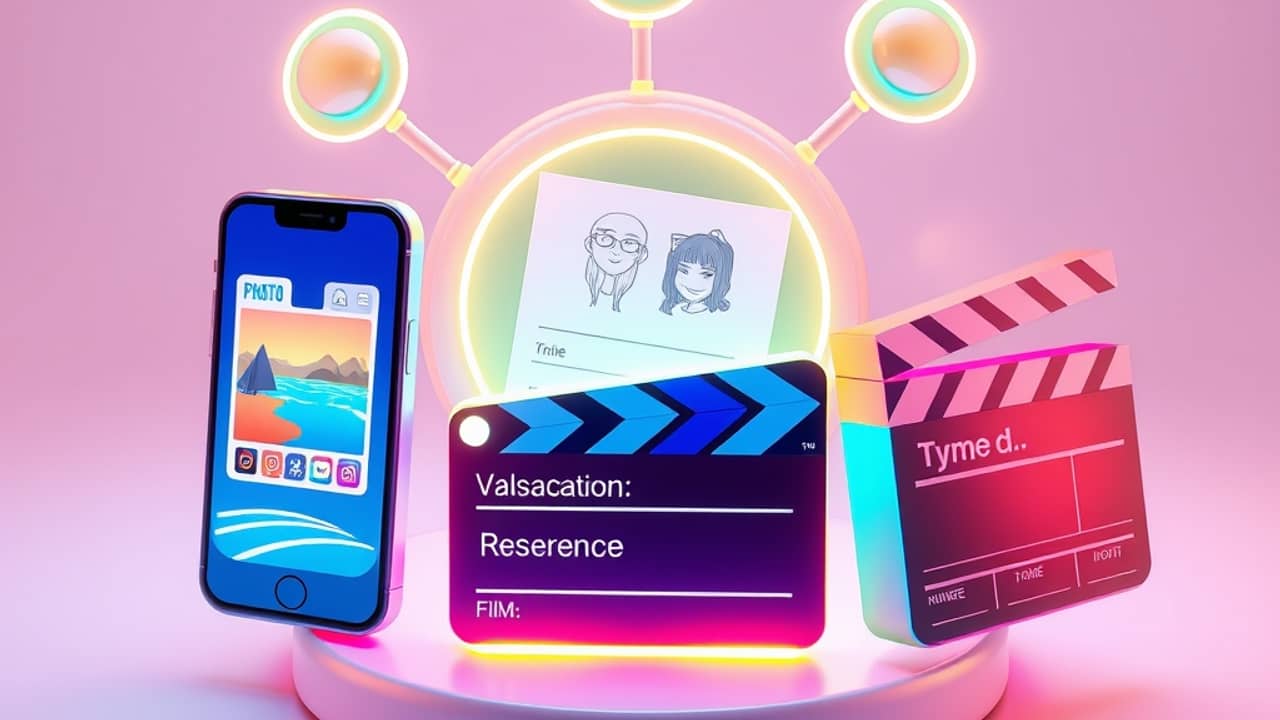
You have a few vacation photos on your phone, a rough idea for a short ad, or a character you sketched and now can't stop thinking about. You've heard you can "generate a video with AI" but you're not sure what to upload, what to type, or whether your input is even enough. That's exactly the gap the three Kling templates inside Picsart Flow are designed to fill.
What a template actually does
A template isn't magic. It's a pre-filled workflow (a set of steps the tool runs for you in a specific order). It decides what the AI gets to "see" before you write your prompt — and what you give the model upfront matters more than the wording you type afterward.
Kling is the AI video model (the engine that creates moving images from your inputs). Picsart Flow is the broader workspace where you assemble those inputs and click "generate." The three Kling templates inside it are just three different ways to feed the same engine.
Template 1 — Start from one photo
You upload a single still image — a landscape, a portrait, a product shot — and tell Kling to imagine motion around it. The photo acts as the first frame, and the AI invents what happens next.
- Best for: making a static picture breathe, turning a hero product shot into a short looping clip, animating an old family photo.
- What the model needs from you: a clear, well-lit image and a short prompt describing the motion (for example: "camera slowly pans right, soft wind in the hair").
If your photo is blurry, dark, or has the subject cut off at the edge, you'll see those flaws in the video. The AI can't recover detail that isn't there.
Template 2 — Start from a character reference sheet
A character reference sheet is a set of images showing the same character from the front, side, and back — the kind of turnaround sheet illustrators use to keep a character consistent across scenes. You upload the sheet, and Kling uses it as a visual rulebook so the character looks the same in every generated clip.
- Best for: short stories with a recurring character, branded mascots, mini-episodes.
- What the model needs from you: a reference sheet with consistent lighting and proportions, plus a prompt that describes the scene, not the character.
This template exists because plain text prompts are terrible at keeping a face or outfit the same from one shot to the next. The reference sheet solves that.
Template 3 — Start from footage plus a script
You upload a clip you've already shot — even rough phone footage — and write a short script describing what should happen over it. Kling uses your footage as a structural guide and rewrites the visuals to match the script.
- Best for: tightening up shaky or boring footage, replacing a plain background with something cinematic, restyling a talking-head video.
- What the model needs from you: usable footage (stable, well-lit) and a script that's specific about what changes you want.
The model won't fix badly framed footage — it follows the rhythm of what you gave it.
How to pick the right starting point
Ask yourself one question: what do I already have?
- A good photo and nothing else → Template 1.
- A character you want to keep consistent → Template 2.
- Footage that almost works but needs a facelift → Template 3.
The prompts matter too, but they're easier to refine once the inputs are solid.
Try this today
Open Picsart Flow, find the Kling templates, and run your first generation with the input you already have on your phone — even just one photo. Spend ten minutes watching how the same prompt produces different results depending on which template you chose. That single experiment will teach you more about AI video than any tutorial.