 AI WORLD HQ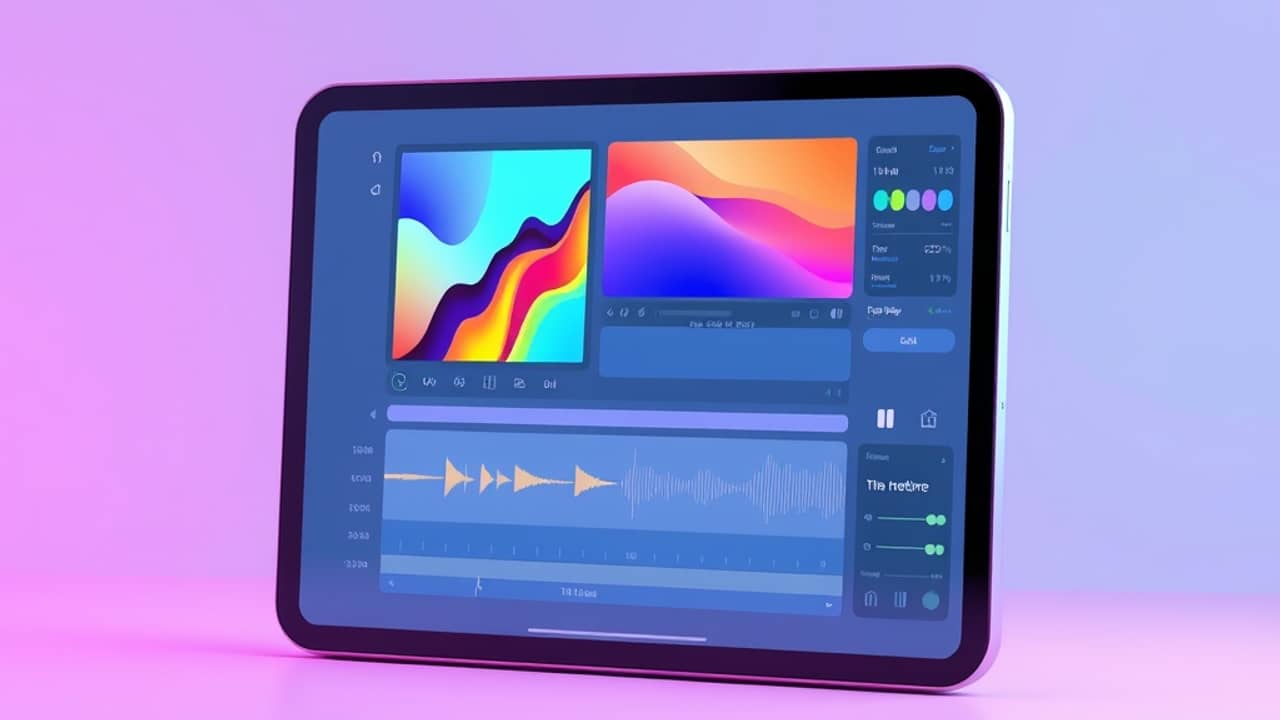
You've got a poster to make for a school bake sale, a 30-second clip to post on social media, and a little jingle stuck in your head that you'd love to hear finished. None of those used to be your problem — you'd either pay someone, learn software, or just give up and use a stock photo.
That's changing fast. A new wave of AI creative tools covers design, photo editing, video, and music — sometimes inside a single app. The pitch is that you can act as your own "creative director" and let the AI do the heavy lifting. Here's what that actually looks like in practice.
What "AI creative team" really means
The phrase is marketing, but the idea is simple. Instead of hiring a separate designer, photographer, video editor, and composer, you use different AI tools — or different tools inside one app — to handle each step. For image and photo work, Pixlr is a well-known example — it's primarily a browser-based photo editing platform that uses AI for retouching and quick image generation. Other well-known tools focus more narrowly on a single job: Runway for video, Suno for music, Midjourney for image generation.
Think of it like a kitchen. You don't need to be a chef to cook a meal — you just need to know which pan goes on which burner, and roughly what's in each jar on the shelf. The AI is your set of capable sous-chefs. Your job is to tell them what you actually want.
The four jobs these tools usually cover
Most "AI creative" platforms split into four buckets, even if they don't use those words:
- Design and image generation. You type a description (a "prompt" — the instruction you give the AI) and it produces a poster, logo, illustration, or social media graphic. You can usually pick a size, a style, and tweak the result.
- Photo editing. Modern AI tools let you remove a stranger from a beach photo, swap a gray sky for a sunset, or sharpen a blurry shot using a single sentence: "remove the trash can in the corner."
- Video. Text-to-video tools turn a short description into a few seconds of footage. Others edit existing clips — cutting, adding captions, swapping backgrounds — using simple instructions instead of timelines.
- Music and sound. You describe a mood ("upbeat acoustic, slightly sad") and the AI generates a clip you can use as background music, a podcast intro, or a starting point for a real song.
You probably won't use all four in one project. Pick the bucket your actual problem lives in.
How to actually get good results
The biggest mistake people make is treating the AI like a vending machine — push a button, take whatever comes out. It works much better when you give it a clear brief. Three things help:
- Say what you want, not what you don't. "A warm, modern poster for a community yoga class, soft greens and cream colors" beats "not too busy, not too bright."
- Describe the audience and where it will live. A flyer for a school gym and a thumbnail for a YouTube video need very different things, even when the topic is the same.
- Iterate. The first result is rarely the last. Ask for two or three variations, then refine the one you like. Most tools make this easy with a "regenerate" or "variations" button.
If you're using an all-in-one platform, you'll usually move between jobs in one workspace — generate an image, edit it, drop it into a short video, add a music track. If you're using separate tools, save your outputs (usually as PNG, MP4, or MP3) and assemble them in a simple editor.