 AI WORLD HQ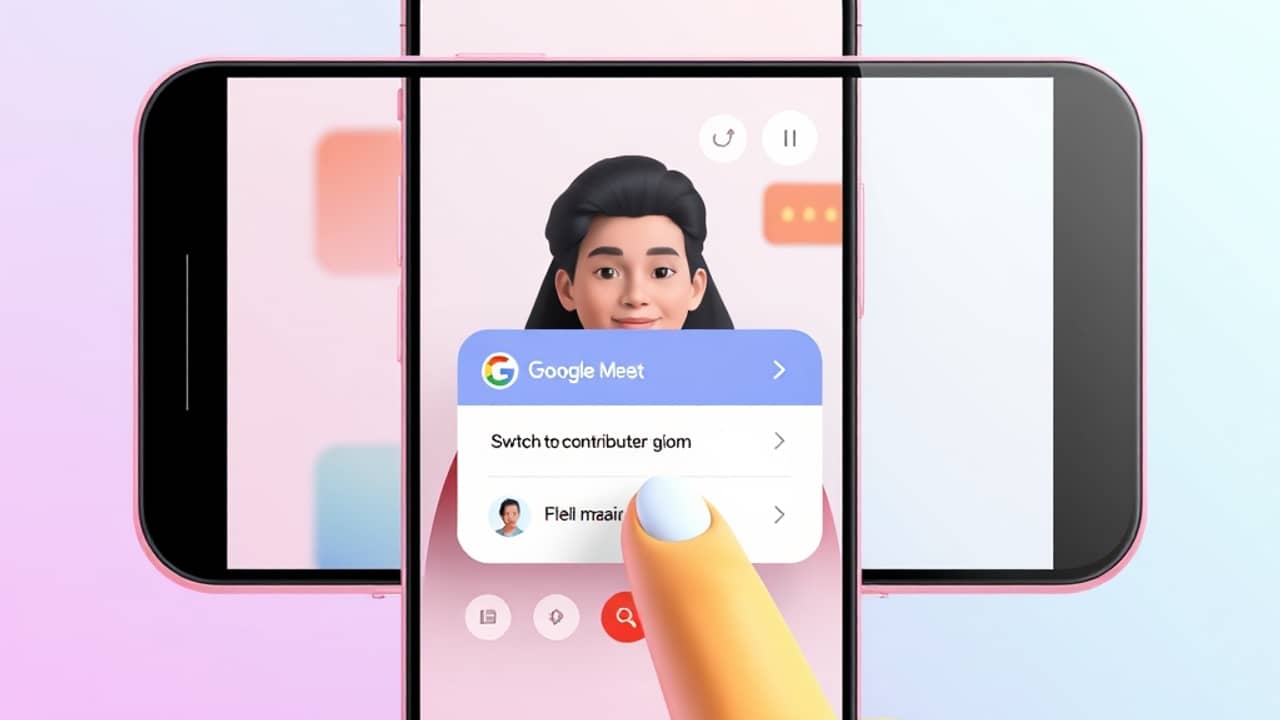
You've been watching a company town hall or a virtual class as a live stream on your Android phone, and suddenly the host asks a question that only you can answer. Until now, you'd have had to leave the app, hunt down the original meeting invite, and rejoin from scratch. Google is rolling out a fix that keeps the whole thing inside Meet.
According to Google's official announcement, a new feature in Google Meet on Android lets you switch directly from live stream viewer to active contributor — audio, video, and all — without juggling links or reopening anything. The transition starts on October 19, 2026, with an extended rollout that Google says will take more than 15 days for full visibility.
Why this matters
If you've ever been invited to a large meeting where most people watch passively but a handful can actively join the conversation, you know the friction. You get a live stream link for the main event and a separate link for the discussion. Switching between them usually meant copying URLs, closing one app, opening another, and hoping you don't miss your cue.
The new workflow keeps everything inside the Meet app. Google says existing meeting access permissions and domain policies still apply — meaning only authorized participants will see the option to join with audio and video. If you're not eligible, you simply won't see the entry points. That protects the integrity of the meeting or event.
This same role-switching is already available on Meet for iOS and on the web. Android is the latest platform to catch up.
Before you start
You'll need a few things in place:
- An Android phone with the Google Meet app installed
- Two invitations for the same meeting — one for the live stream, one for the main meeting room
- The rollout must have reached your account (it begins October 19, 2026, and takes more than 15 days to reach everyone)
The feature is available to all Google Workspace customers, Workspace Individual subscribers, and users with personal Google accounts.
Step 1 — Confirm you were invited to both the live stream and the main meeting
You can only switch roles if the meeting organizer invited you to both the live stream and the main meeting. If you only got one link, you'll stay a viewer for the whole event.
💬 Example: Check your calendar invite or email — if you see two separate meeting links from the same organizer, you're eligible. If you only see one, the option won't appear for you.
You'll know it worked when: You can point to two distinct invitations, and at least one of them is clearly labeled as the "main" meeting while the other is the live stream.
Step 2 — Open the live stream in Google Meet on Android
Open the Meet app on your phone and join the live stream the way you normally would — tap the live stream link from your calendar invite, email, or chat message. Wait for the video to start playing.
You'll know it worked when: You're watching the live stream and a "LIVE" badge is visible somewhere on the screen, indicating you're in viewer mode.
Step 3 — Look for one of the three entry points
While you're watching, Google says you'll find the role-switch option through one of these three places:
- The meeting title at the top of the screen
- The live streaming badge (the "LIVE" indicator)
- The info button in the overflow menu (the three-dot menu, usually in a top corner of the Meet screen)
💬 Example: If you don't see an obvious switch option near the title or the LIVE badge, tap the three dots — Google's announcement says the info button lives there.
You'll know it worked when: You see an option or prompt that mentions joining the main meeting or becoming a contributor.
Step 4 — Switch to contributor mode
Tap the entry point you found and follow the prompt to join the main meeting with audio and video. The transition should happen inside the same Meet app — no new links, no copy-pasting, no switching to a browser.
You'll know it worked when: Your camera and microphone activate, and you appear as a participant (not a viewer) in the meeting roster.
Step 5 — Verify your new role and start participating
Once you've switched, take a quick moment to confirm your camera is showing what you expect and your microphone is working. Some meetings mute new contributors by default — look for an unmute button if other people can't hear you.
You'll know it worked when: You can speak and be heard, and other participants see your video feed as an active tile in the meeting.
Common mistakes
- Assuming the option will appear for everyone. Google says only eligible viewers — those invited to both the live stream and the main meeting — will see the entry points. If you don't see one, you're almost certainly not eligible for that event.
- Checking only the meeting title. The switch option may appear via the live streaming badge or the overflow menu instead. If the title doesn't react, try the other two places.
- Trying to switch after the live stream ends. The feature works during the live stream. Once the stream wraps up, you can't switch into contributor mode.
- Forgetting to unmute. Some meetings start new contributors on mute for noise control. Check your mic status before assuming the switch didn't work.
A related Workspace update
In a separate announcement, Google shared that "skills" in the Gemini app — pre-built AI helpers designed for specific tasks like summarizing or drafting — are rolling out starting October 13, 2026, with full availability expected by mid-November. Skills in Workspace itself are delayed until further notice; Google says it's working to make sure that launch is safe and reliable.
Wrap-up
Google's new in-app role switching for Meet live streams is a small change that solves a real headache: no more juggling links when you suddenly need to speak up. It rolls out to Android starting October 19, 2026, and is available to all Workspace customers, Workspace Individual subscribers, and users with personal Google accounts. If you've got a virtual event coming up, check your invite — and if you were invited to both the stream and the main meeting, you'll be able to jump in with one tap.