 AI WORLD HQ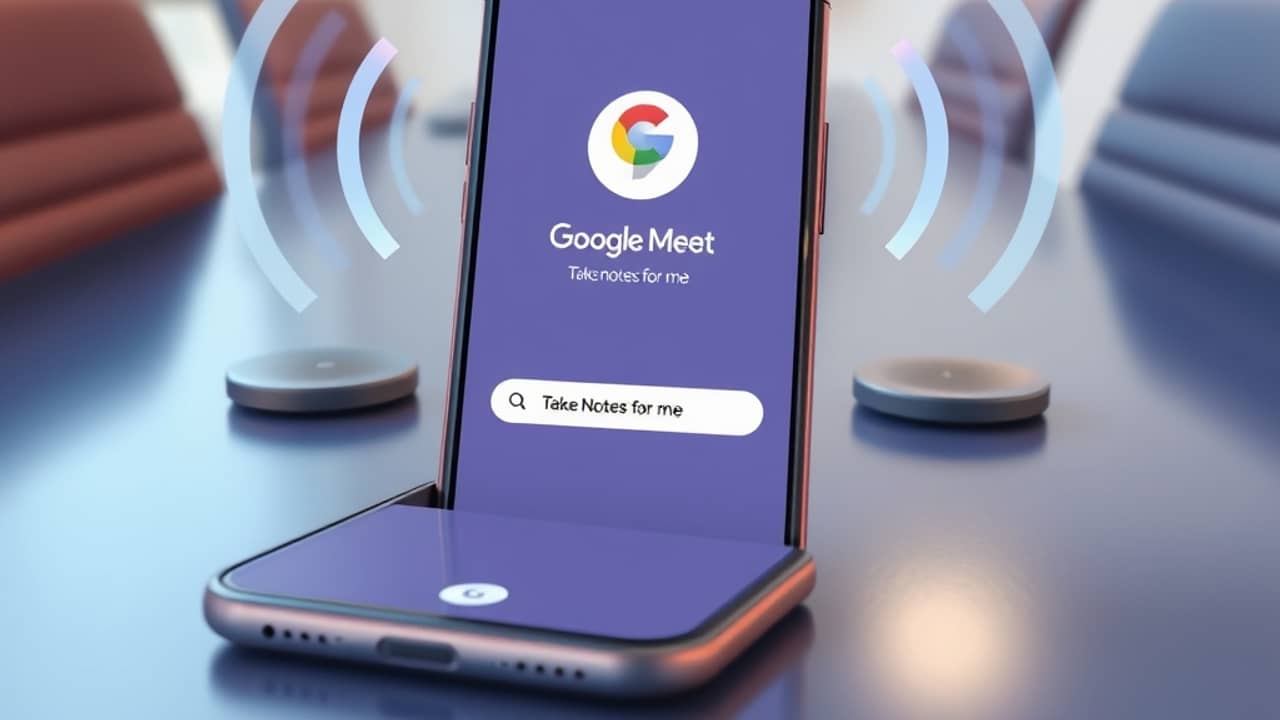
You've just walked out of a 45-minute meeting. Your head is full of decisions, action items, and one name you can't quite remember. By the time you sit down to write notes, half of it has already faded.
Google Meet's new "Take Notes for me" feature is built for exactly this moment. After months of working only inside video calls, it's now expanding to the kind of meetings most of us actually have — the ones in conference rooms, kitchens, and coffee shops, where everyone is sitting around the same table.
What's actually new
Until recently, "Take Notes for me" lived inside a Google Meet video call. You'd click a button in the meeting window, the AI would join as a silent participant, and at the end you'd get a summary, key points, and suggested action items.
Now Google is rolling out the same idea for in-person meetings. Instead of needing a video call, you start a "Take Notes" session directly from the Google Meet home screen on web or mobile. The session runs locally — no video, no remote participants required — and the AI listens through your device's microphone.
When the session ends, you get the same kind of structured notes the video version produces: a summary, decisions, and any to-dos the AI can spot from what was said.
How it works in practice
You open the Google Meet app or visit meet.google.com on the web. On the home screen, alongside the usual "Start a meeting" or "Join with a code" options, you'll see a "Take Notes" button.
Tap it, name the session, and start. Place your phone on the table or keep your laptop open. The AI listens in real time and turns spoken conversation into notes. When the meeting wraps up, you stop the session and the notes appear, ready to share, edit, or save.
A small heads-up: features like this usually roll out gradually. If you don't see the "Take Notes" button on your home screen yet, check back in a week or two — and if you're using Google Workspace for work, your admin may need to enable it for your account first.
Wrap-up
The idea behind "Take Notes for me" isn't really about taking notes. It's about being fully present in the room while still having a clean record of what happened. For anyone who has ever left a meeting with a half-empty notebook and a fuzzy memory, that's a meaningful change.
A simple step to try today: open Google Meet on your phone or laptop and look for the "Take Notes" button on the home screen. If it's there, run a short test session during your next meeting — even a quick 15-minute one — and see how the summary comes out.