 AI WORLD HQ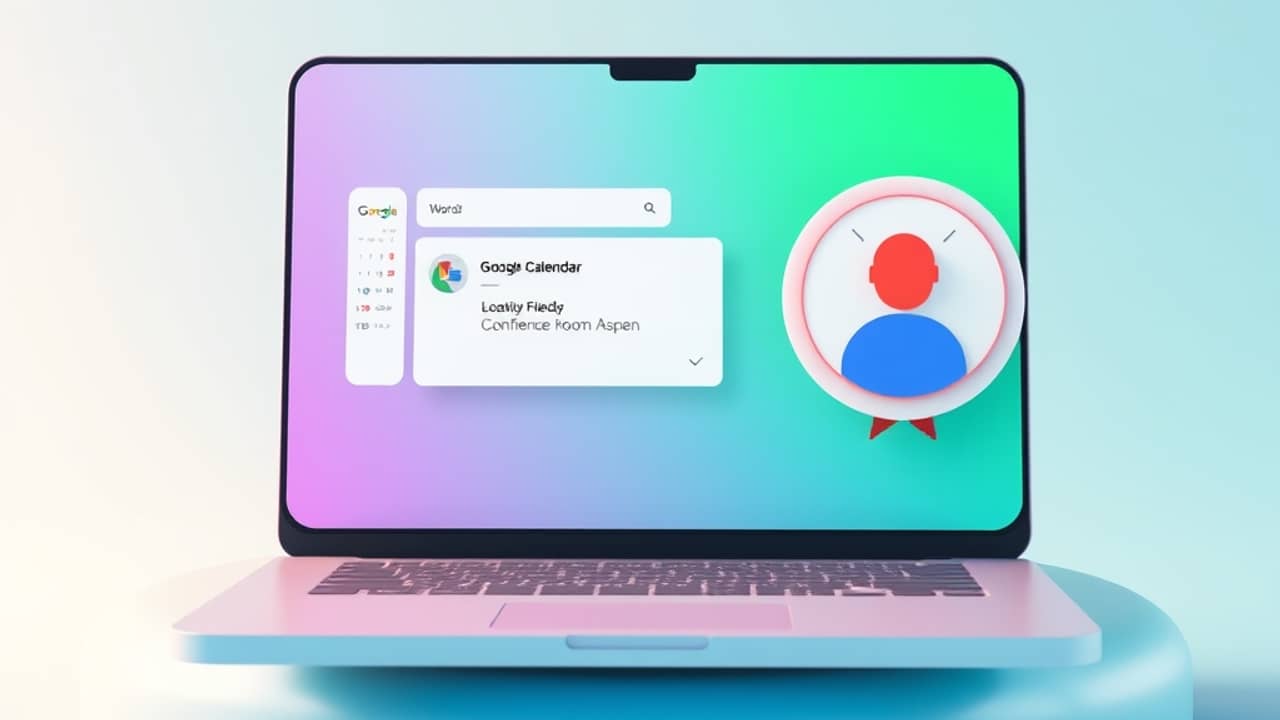
You've clicked join, the meeting has started, and you're the one walking the hallway looking for "Aspen" or "Catalyst 3" while everyone else is already talking. That small daily scramble almost always has the same cause: the meeting room info exists somewhere in your calendar, but it isn't where you're looking. Here's how to find it — and how to make sure it's there for the next person.
Before you start
You'll need:
- A Google account with Google Calendar and Google Meet
- Either the web version at calendar.google.com and meet.google.com, or the Google Calendar app on iPhone or Android
- A meeting invite that already has the room booked (for the first three steps), or organizer access to a Calendar event (for the last two)
Step 1 — Check the Calendar event itself
The room and address always live on the Calendar event. The fastest way to find them is to open the event, not the Meet call.
On the web, open calendar.google.com, click the meeting on your calendar grid, and a small popover will appear with the title, time, and a Location field. If the location is filled in, you'll see the room name, building, or full address right there. If you want the full details, click "Open event" or the popover's expand icon, and the full event page opens with everything: title, time, guests, location, description, and any attachments.
On the phone, open the Google Calendar app, tap the event, and scroll. The Where line sits right under the time block.
You'll know it worked when: you see a street address, building name, or room label under "Location" (web) or "Where" (phone) without having to scroll into a separate invite email.
Step 2 — Check the Google Meet web homepage
When you open Meet at meet.google.com on the web, you see a list of your upcoming meetings as cards. Each card shows the meeting title, the time, and the join button. If the meeting has a physical location filled in on the Calendar event, that room or address typically shows up on the card too — usually directly under the meeting title.
On the phone, the Meet app behaves a little differently. It focuses on joining a meeting by code, and the upcoming-meeting view isn't as full as the web homepage. If you can't see the room on your phone, that's normal — switch to the web or to the Calendar app for the full picture.
You'll know it worked when: you see a line under the meeting title that includes a room name, floor number, or street address, and you didn't have to click into anything.
Step 3 — Check the original email invite
If neither the Calendar event nor the Meet homepage gives you what you need, the original email invite is the fallback. Search your inbox for the meeting title or the organizer's name. Open the invite and look for the Location: line near the top, just under the date and time. It contains whatever the organizer typed in — a room number, a building name, a full address, or sometimes a link to a map.
This is also the place to find attachments like a floor plan PDF or a one-time meeting link that didn't make it onto the Calendar event page.
You'll know it worked when: you can read the room number or address without leaving your inbox.
Step 4 — If you're organizing: fill in the Location field when you create the event
The card and the Meet homepage can only show what's in the Location field. If it's blank, the card stays blank. So if you're the one setting up the meeting, fill it in.
On the web, in Google Calendar, click any empty time slot, then click "Create event" (or click the "More options" link to open the full event editor). You'll see a Location field just below the date and time. Type the room name or full address. Calendar will suggest matching rooms from your building if your organization uses resource calendars — special email-style addresses like [email protected] that book a physical room when you add them as a guest.
On the phone, in the Calendar app, tap the "+" button to create an event, tap "Add location", and type it in. Tap the suggested room if one matches.
You'll know it worked when: after you save the event, you can open it back up and see the location line is no longer empty.
Step 5 — If you're organizing: use a clear, consistent format
The Location field accepts anything, but a good format saves everyone a minute of walking. Pick one and use it every time:
- Room first, then building:
Room 4B — Building 2, 3rd floor - Address for off-site guests:
221B Baker Street, London — ask for "Aspen" room at reception - Hybrid meetings:
Conference Room Aspen, Building 2 + Google Meet link in description
If your office has rooms with creative names, add the building or floor in parentheses: Catalyst 3 (Building 2, 3rd floor). Future you, walking in from the elevator, will thank you.
You'll know it worked when: a colleague can find the room on their first try without asking anyone.
Common mistakes
- Leaving the Location field blank. The single most common reason attendees can't find a room. If the meeting has a room, put the room in the Location field — every time.
- Writing only "the conference room." Which one? On which floor? "Conference Room" alone forces a guess. Add the room number or building.
- Forgetting to update the location when the room changes. If a meeting moves from Aspen to Birch, edit the event and change the Location field too. The old room doesn't update automatically, and your attendees will walk to the wrong one.
- Putting the Meet link in the Location field. The Meet join link belongs in the event description or in the "Add Google Meet video conferencing" button — not in Location. Mixing them up hides the room from anyone who's already joined the call.
- Typing "TBD" or "TBA" and never updating it. A placeholder is fine while you're booking, but if the room is confirmed, replace the placeholder with the real room name. Search your calendar for "TBD" every couple of weeks and clean up any you find.
Wrap-up
Meeting room details aren't hard to find — they're just easy to miss. The Location field on the Calendar event is the single source of truth, and the Meet homepage and the email invite both pull from it. As an attendee, the habit is "check the event before you walk." As an organizer, the habit is "fill in the field, every time, with a clear format." Try it on your next meeting, and notice how much smoother the walk in feels.