 AI WORLD HQ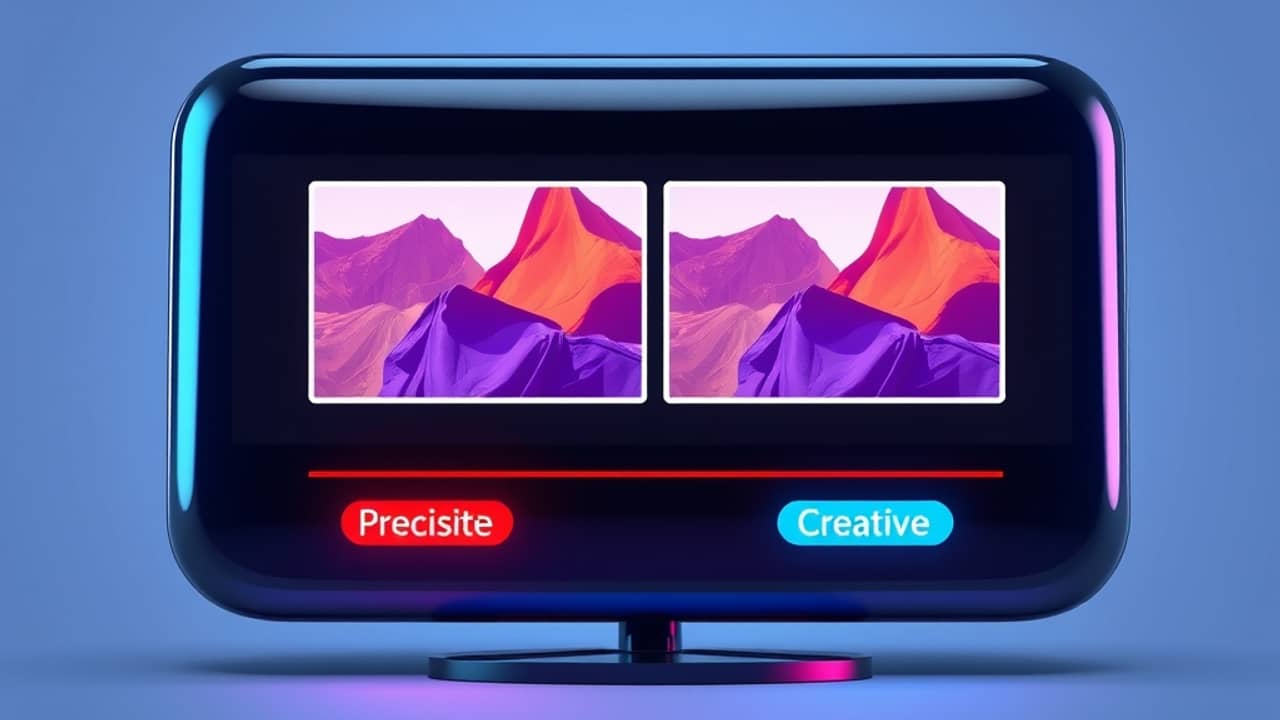
You've probably hit this before: an old family clip looks soft and pixelated, a downloaded video is only 720p, or you shot something on a phone that just isn't sharp enough for the project you're working on. AI video upscaling promises to fix that — to take a low-res clip and rebuild it toward 4K (a screen size of roughly 3840 by 2160 pixels, with about four times the detail of 1080p). The trick is that "upscale" is doing more work than it sounds, and one decision in the tool quietly changes everything.
What "AI upscaling" actually means
Traditional upscaling (the kind your TV or phone does by default) just stretches the pixels it has — like blowing up a small photo. You get a bigger image, but no new detail. It's fast, and it's free of surprises.
AI upscaling is different. The tool has been trained on millions of frames (the still images that make up a video, one for every moment of footage), so it has learned what skin, hair, brick walls, leaves, and text usually look like at higher resolution. When you feed it your low-res clip, it doesn't just stretch — it tries to guess what the missing detail should be, frame by frame, then stitches them back into smooth motion.
That guesswork is what makes the result look genuinely sharper. It's also where things can quietly go wrong.
The two modes: precise vs creative
Most modern AI upscalers ask you to pick a mode before they start. Two flavors show up again and again:
- Precise mode stays loyal to the original clip. The AI smooths edges, cleans up compression artifacts (the blocky squares you sometimes see in heavily compressed video), and sharpens what's already there — but it won't invent new detail. A face stays the same face. A logo stays the same logo. This is the safer choice for archival footage, talking heads, or anything where accuracy matters.
- Creative mode lets the AI fill in more aggressively. It might add pores to a face, sharpen text that was blurry, even out a brick wall, or pull detail out of foliage that wasn't really there. The clip looks crisper, sometimes dramatically so — but the AI is essentially redrawing parts of every frame. A grandmother's face might come back looking like a slightly different person. A logo might say something subtly off.
Neither mode is "better." They're different tools for different jobs. The single biggest mistake people make is choosing creative mode by default because the preview looks more impressive, then wondering later why faces don't quite look right.
Which mode to pick (a quick guide)
- Old family videos, weddings, archival footage → precise. You want the people you love to still look like themselves.
- CCTV, dashcam, security footage → precise. You need what's actually there, not what the AI thinks might be.
- B-roll (the scenic or supporting footage you layer into an edit), landscapes, generic backgrounds → creative often works beautifully. There's less at stake if a leaf gets redrawn.
- Stylized animation, video game captures, drone footage → start with precise, try creative on a short test clip, then decide.
- Any clip with faces that matter → precise, unless you're going for a stylized look and you don't mind the change.
Wrap-up
AI video upscaling is one of the most genuinely useful AI tools for ordinary people, because almost everyone has old or low-res footage they'd love to see in better quality. Just remember the rule: pick the mode on purpose, not by default. The resolution slider (the control that sets how big the final video will be) matters far less than the choice between precise and creative. That one decision is the difference between a sharper version of the clip you have, and a clip that's been quietly redrawn. Try a 10-second test in both modes tonight — that's all it takes to see the difference for yourself.