 AI WORLD HQ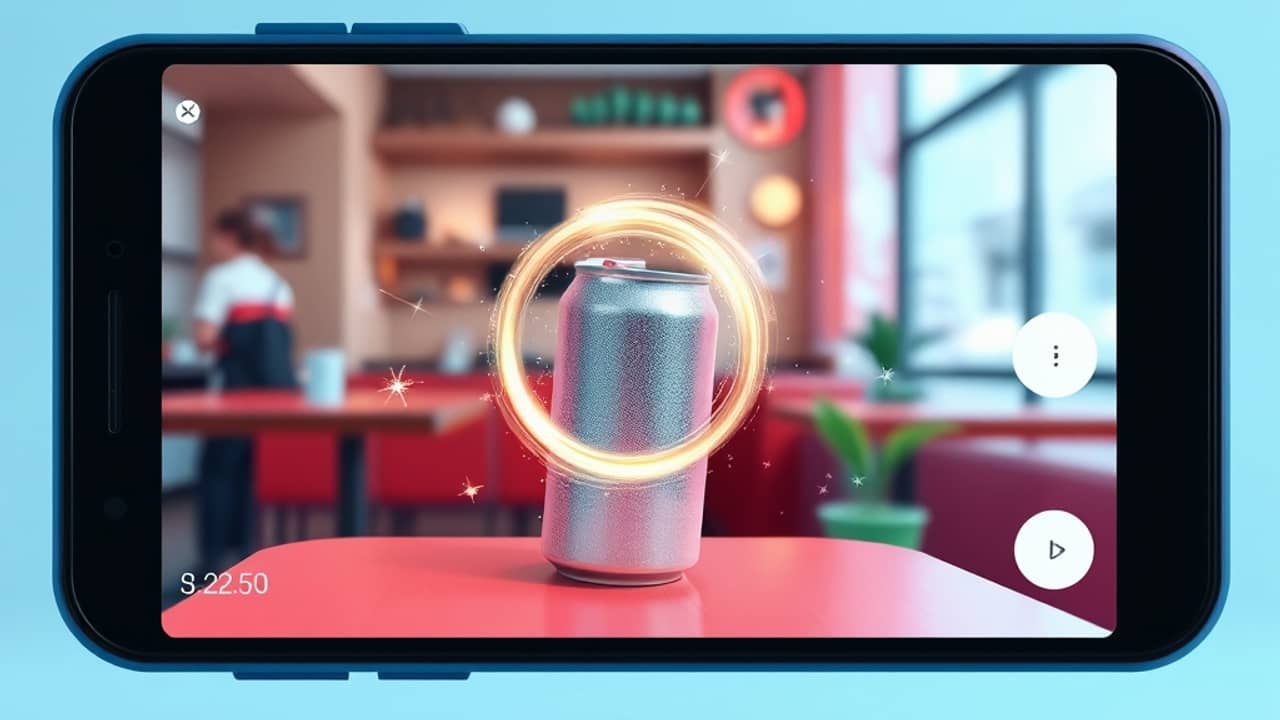
You took a great photo of your lunch at a cafe, and there's a stranger's elbow creeping into the corner. Or you snapped a product shot for your small shop's Instagram, and a parked car slipped into the edge of the frame. In the old days, you'd either live with it, crop it out, or open a heavy editing program. Now there's a faster way — and it's built into apps many people already have on their phone.
What inpainting actually means
Inpainting is the technical name for "fill in part of an image with something new." In AI tools, it means you tell the AI which part of the picture to change, and it generates new content that fits the surroundings. Picsart offers this inside its AI editing features, often labeled something like "AI Replace" — but the underlying trick is the same one used by every modern photo app with this capability.
The word comes from old photo restoration work: specialists would "paint in" missing parts of damaged prints by hand. AI just does the painting for you, in seconds, and from a text description.
Why this is different from "AI image editing"
Most AI photo tools work like this: you upload a picture, type a description, and the AI generates a completely new image based on your words. The result might look similar, but the colors, the lighting, and small details in the background will all be different. It's a fresh drawing inspired by your photo.
Inpainting flips that around. You only change the pixels you mark. Everything else — the lighting on the table, the texture of the wall, the sky behind your subject — stays exactly as the camera captured it. The AI fills in only the missing piece.
That difference matters in three real ways:
- Speed. You don't have to describe the whole image. You describe just the small change.
- Consistency. Faces, brand colors, and small details don't drift between edits.
- Control. You decide exactly what changes, and what doesn't.
What you can realistically do with it
Here are the kinds of swaps people actually use this for:
- Removing photobombers from travel photos — brush over the tourist, write "empty beach," done.
- Cleaning up product photos for an online shop — drop a soda can or a stray wire from the background.
- Updating old logos on storefront photos without reshooting.
- Tidying up real estate listings — removing a parked car or trash bin from a property photo.
- Personal creative edits — putting a different hat on a friend, just for fun.
The honest limit: the results are usually good but not always perfect. Hands, faces, and small text are the hardest things for AI to generate cleanly. If you brush over a face, expect to look at the result carefully before you share it.
Wrap-up
AI object replacement is one of the most practical everyday uses of generative AI — not because it's flashy, but because it solves a problem almost everyone has: a nearly-perfect photo with one thing in it you wish wasn't there. Picsart's version lives inside their photo editor, in the AI tools section. The next time you take a photo you almost love, give it a try — a small brush, a short description, and a few seconds is all it takes to find out.