 AI WORLD HQ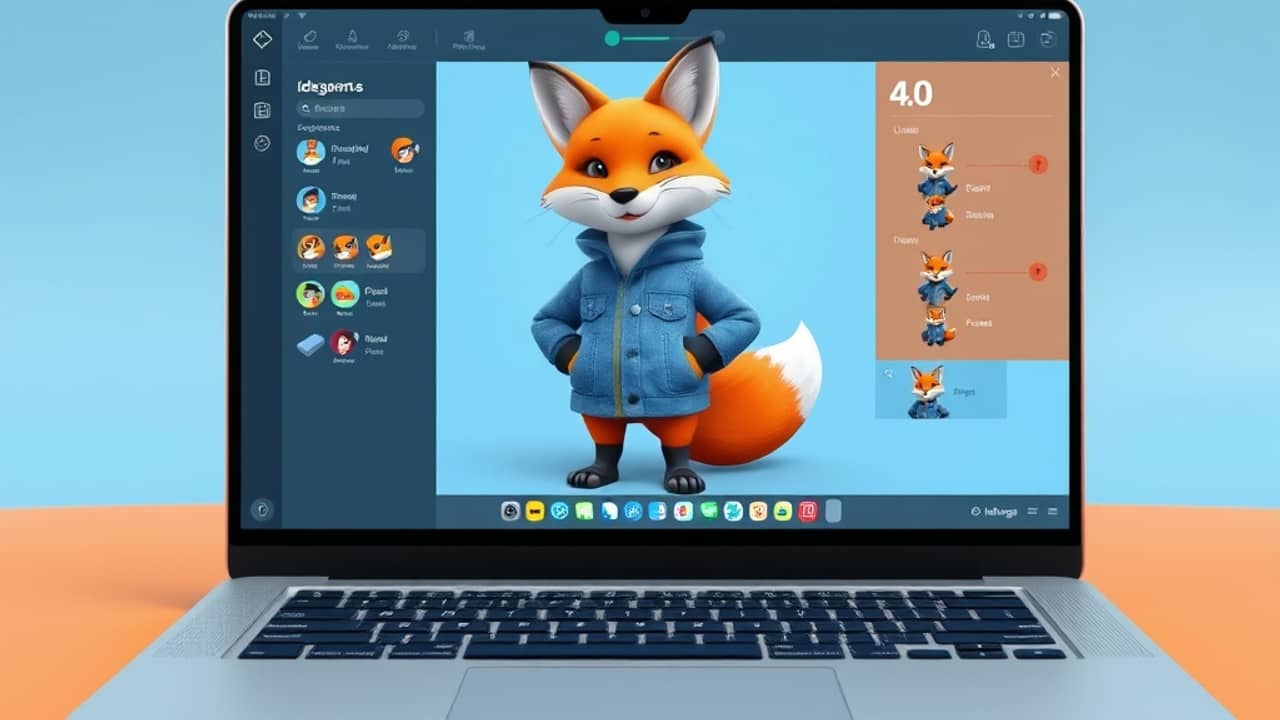
You generate a friendly fox mascot in a denim jacket. You love it. Then you need that same fox on a website banner, in a podcast thumbnail, holding a coffee cup, and waving from a T-shirt. The catch with most AI image tools is that "the same character" never really looks the same twice. The nose shifts, the jacket changes color, the hair gets longer — and suddenly you have three mascots instead of one.
According to Ideogram's announcement, that's exactly the problem Character is built to fix.
Before you start: what you'll need
- An Ideogram account. Pricing and plan options are listed on Ideogram's official pricing page — check it for the most current details.
- Access to Ideogram 4.0, which is the model version that includes the Character feature. The announcement is built around this version.
- A clear idea of the mascot you want. Even a rough sketch or a written description helps.
- A few minutes to save and reuse one reference image. That single image is the whole trick.
What is a "reference image"? It's a picture you feed the AI as an example of what something should look like. Instead of describing the character with words, you just show it.
Step 1 — Generate your base mascot in Ideogram 4.0
Start by creating the "official" version of your mascot. Open Ideogram 4.0 and write a prompt (the instruction you give the AI) that describes your character in detail: species, outfit, colors, hairstyle, proportions, accessories — anything that's part of the character's identity.
Run a few generations until you get one image that really feels right. Don't worry about pose, background, or lighting yet — those are things you'll vary later. Focus only on the character itself.
💬 Example prompt: "Friendly cartoon fox mascot, soft round features, denim jacket over a red t-shirt, big amber eyes, neutral standing pose, simple flat illustration style."
You'll know it worked when you have one image you'd be happy to use as the "official" version of your mascot — a clean, recognizable look you could put on a business card.
Step 2 — Save that image as your character anchor
Once you have the image you love, save it. This is now your character's anchor — the reference that every future generation will be measured against. Give the file a clear name like mascot-fox-official.png so you can find it again.
Treat this image the way a brand treats its logo file: as the single source of truth.
💬 Example filename: mascot-fox-v1-front.png
You'll know it worked when you can find the file easily and you have one — and only one — "official" reference image stored somewhere you trust.
Step 3 — Start a new generation and attach the reference image
For your next image, begin a fresh generation in Ideogram 4.0 and attach the file from Step 2 as a character reference. According to Ideogram's announcement, this is what tells the model: "keep this character the same, no matter what else I ask for."
You don't need to re-describe the fox in words. The image already does that work for you.
💬 What to attach: the saved mascot-fox-v1-front.png from Step 2.
You'll know it worked when the new generation interface shows your reference image attached — usually as a small thumbnail near the prompt area once the upload completes.
Step 4 — Prompt only for what should change
Now write a new prompt, but only describe the changes — pose, scene, lighting, prop. Leave the character's features out of the prompt. The reference image is handling face, hair, outfit, and proportions for you.
This is the part that takes practice. If you keep describing the fox in the prompt, you may accidentally nudge the model away from your reference. Let the image do the talking.
💬 Example prompt: "Same character, now sitting at a wooden desk, holding a coffee mug, warm morning light from the left."
You'll know it worked when the new image clearly shows the new pose and setting, but the character's face, hair, jacket, and overall proportions still match your reference image.
Step 5 — Compare, tweak, and rerun
Open both images side by side. Does the new image feel like the same character? If yes, great. If something is off — the eyes look different, the jacket color shifted, the hair got longer — adjust the prompt.
According to Ideogram's announcement, the model holds the character features from the reference image, so your prompt should focus on what should change, not what should stay the same. If a feature keeps drifting, your prompt may be accidentally re-describing it.
💬 Tweak example: if the eyes keep changing color, remove any mention of eyes from your prompt entirely.
You'll know it worked when a colleague looking at both images says "yeah, that's the same character" without you having to point it out.
Step 6 — Build a small library of poses
Once you've got one good variation, repeat. Generate the same mascot waving, pointing, holding a product, sitting at a laptop, in different lighting. Each time, attach the same reference and only change the prompt for the new context.
Soon you'll have a starter library of on-brand mascot images you can drop into a banner, a thumbnail, a slide, or a sticker pack — all visually consistent.
💬 Library starter set: front-facing, three-quarter view, holding a product, sitting at a desk, waving.
You'll know it worked when you can pull five to ten images from your library and they all look like they belong to the same brand.
Common mistakes to avoid
- Re-describing the character in every prompt. Once the reference image is attached, the model reads it. Adding a long character description often introduces drift. Describe only what changes.
- Using different reference images for the "same" character. Pick one anchor image and stick with it. Mixing references causes mixed features — and a slightly off-model mascot.
- Expecting perfect consistency on the first try. AI image models are not magic. You'll likely need two or three attempts per pose before the result feels right. Plan for that.
- Forgetting to save the original in good resolution. A blurry or low-res reference image gives you blurry or low-res variations. Start with the cleanest version you can get.
Wrap-up
The big idea behind Ideogram Character is simple: stop describing the same character over and over. Design it once, attach the image, and only prompt for what should change.
Your next step is short and concrete: open Ideogram 4.0, generate one mascot you're happy with, save it, then run Steps 3 and 4 once. Five minutes from now you'll know whether this workflow fits how you work.