 AI WORLD HQ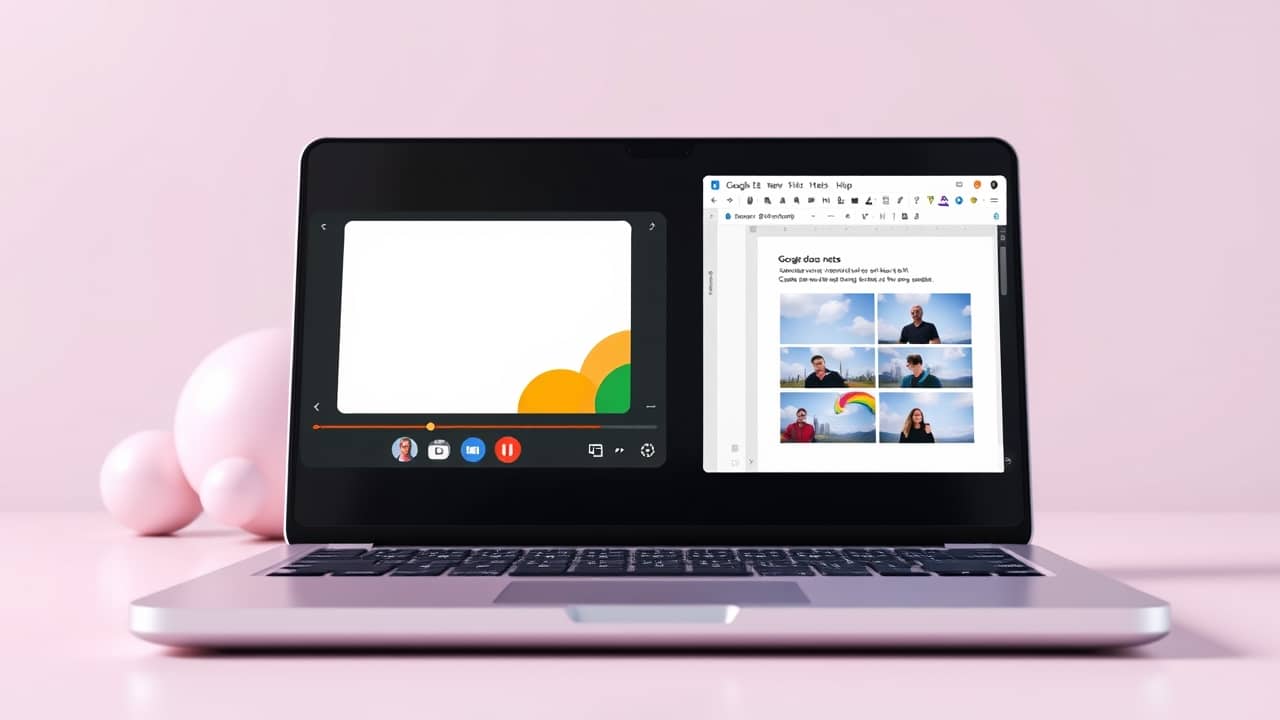
A 45-minute client call ends. You open the auto-generated notes and there's a tidy summary, but no trace of the slide deck the presenter clicked through for the last 20 minutes. You scroll your memory, then your email, then Slack, looking for the attachment. Twenty minutes gone. Google Meet's new visual screenshots are designed to close exactly that gap.
What you'll need before you start
Three things, and the first one is the one most people don't realize they need:
- A Google Workspace account, not a personal Gmail. "Take notes for me" only works inside Workspace — the business or school version of Google's tools.
- An admin who's willing to flip the switch. Most new AI features in Workspace are off by default. Your admin has to enable "Take notes for me" and the new visual screenshot option for your team — usually through the Google Admin Console at admin.google.com.
- Meetings where someone shares their screen. Screenshots are captured from the screen-share feed. If a presenter talks through slides without sharing their screen, there's nothing for the AI to grab.
One honest caveat: Google has said the visual screenshot update is rolling out "in the coming weeks," with no published date for general availability. If your admin enables it today, your account may not see it for a few more weeks. That's normal — Google's AI features often stagger by region and plan.
Step 1 — Find out who your Workspace admin is
You can't enable this yourself, so the first move is naming the person who can. In most organizations, this is whoever set up your work email — IT manager, head of operations, or an outside IT provider.
Where to look: Ask in your team chat, or send a quick email to your closest teammate. If you happen to have Admin Console access yourself, the directory lists admins under Directory > Users.
What you'll see: Either a direct name from a teammate, or a list of admin users in the directory.
💬 Try this message: "Hey team — quick one: who's our Google Workspace admin? I want to ask about turning on a new Meet AI feature."
You'll know it worked when you have a name and a working way to reach them — email, Slack DM, or a Teams message.
Step 2 — Send your admin a specific message
A vague "turn on the new AI thing" usually sits in an inbox for weeks. A specific request with a named feature moves faster.
Where to send it: Whatever channel your admin actually reads — work email, a ticketing system, or a dedicated Slack channel for IT requests.
What you'll see: A reply, even if it's just "I'll look into it next week." That reply is your signal that the request exists and has a name attached.
💬 Try this message: "Hi [admin name] — Google is rolling out visual screenshots inside Meet's 'Take notes for me' feature. When it lands on our Workspace plan, could you enable it for [my team / all of us]? Happy to test it on my next few calls."
You'll know it worked when your admin replies, even just to acknowledge the request. If you don't hear back in a week, send a short follow-up — IT inboxes get buried fast.
Step 3 — Find the "Take notes for me" button in your next Meet call
Once your admin confirms the feature is on for your account, the rest happens inside Meet itself.
Where to look: Open or join a Google Meet call. The button sits in the bottom toolbar — usually under the three dots (Activities) or directly visible — labeled "Take notes for me" with a small notepad icon.
What you'll see: A pop-up asking which Google Doc the notes should be saved to (or accepting a default). After you confirm, a small panel appears in your meeting showing a link to the live notes doc.
💬 Tap Take notes for me → choose Start taking notes. The first time, you'll pick a destination folder in Google Drive.
You'll know it worked when a "Notes" panel appears in the meeting with a working link to a Google Doc.
Step 4 — Ask presenters to share their screen at key moments
This is the habit change. Screenshots only land in the notes when something is actually being shown on screen.
Where to do it: As the meeting host, in the meeting itself — ideally before the slide-heavy section starts, not after.
What you'll see: The presenter clicks "Present now" (or "Share screen") in the bottom-right of their Meet window, and their screen appears for everyone.
💬 Try this line: "Before we go through the pricing slides, can you share your screen so they get captured in the meeting notes?"
You'll know it worked when the presenter shares their screen — and ideally confirms out loud, so anyone joining late knows what's happening.
Step 5 — Open the notes doc during the meeting, not just after
The screenshots appear in the Google Doc in real time as the meeting goes on. If you wait until the meeting ends to open it, you lose the chance to ask the presenter to re-share anything that's missing.
Where to look: Click the "Open notes" link in the meeting's notes panel, or find the Google Doc in your Drive — it usually lands in "My Drive" or the folder you picked in Step 3.
What you'll see: A running transcript, a summary, and — once the new feature rolls out to your account — small thumbnail screenshots pasted next to the moments they were shown.
💬 Open the notes doc partway through the meeting → scroll to the most recent slide → if a screenshot is missing, ask the presenter to re-share before the call ends.
You'll know it worked when you see at least one screenshot in the doc tied to a moment in the transcript.
Common mistakes
- Asking the admin to "turn on Gemini" without naming the feature. "Take notes for me" is specific and findable in the Admin Console; "Gemini" is broad. Name the feature in your message — see Step 2.
- Sharing confidential dashboards without thinking. Anything shown on screen during the call can end up in the notes doc, and from there in a shared Drive folder. Be careful with client data, unreleased designs, or anything HR-related.
- Skipping the "Take notes for me" pop-up because it looks like a notification. That pop-up is the actual feature. Tap Allow or Start taking notes — otherwise the screenshots have nowhere to land.
- Treating the notes doc as a substitute for being in the meeting. The AI captures what was shared on screen, not the side chat, the hallway conversation, or the unspoken "we'll deal with this later" look. Read it as a memory aid, not the official record.
Wrap-up
Google Meet's notes are about to stop being text-only. Once your admin enables visual screenshots, every shared slide and chart during a call will land inside the same Google Doc as the meeting summary — no more guessing what was on screen.
The move you can make today: find your Workspace admin, send them the short message in Step 2, and get your name on the early-access list before the rollout reaches your account.