 AI WORLD HQ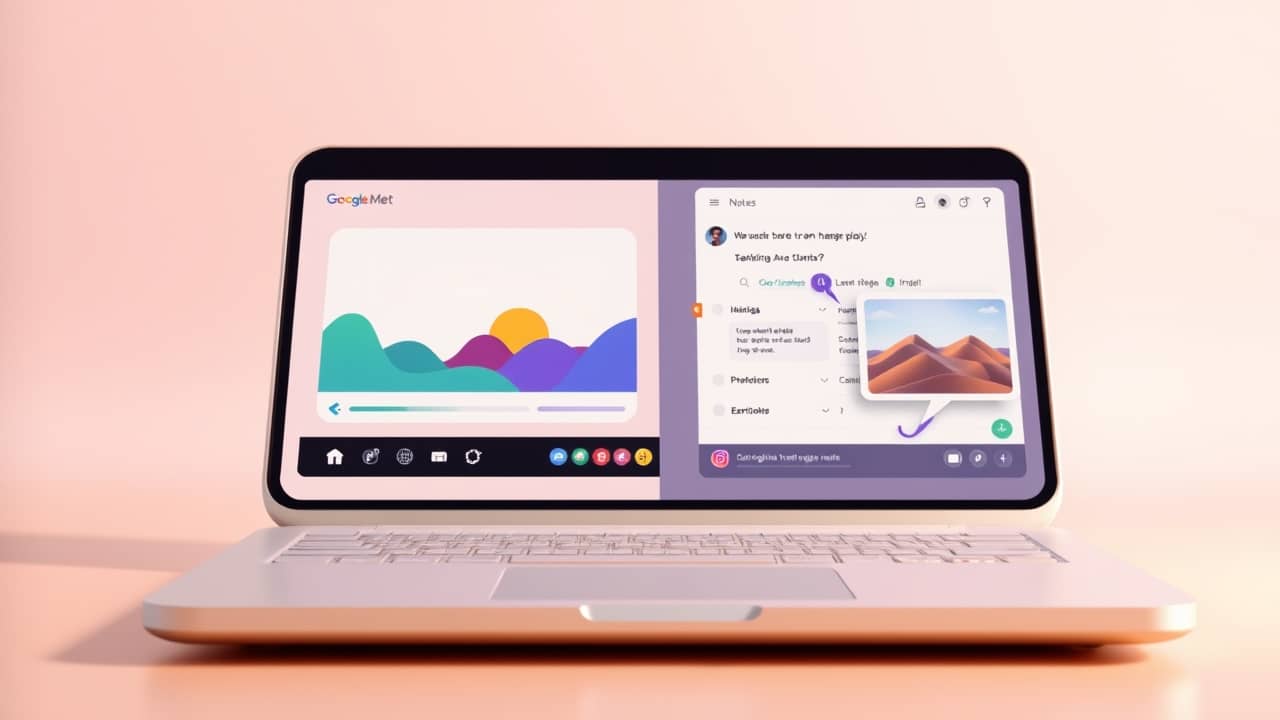
If you've ever left a meeting and stared at the AI-generated notes thinking, "This mentions a slide, but I have no idea which one" — this update is for you. Google Meet (Google's video calling tool, the one many workplaces and schools use) is teaching its notetaking assistant to grab pictures of shared content and drop them into the notes.
What's actually changing
Today, "Take notes for me" writes down what people say. It uses a transcription (a written record of the spoken conversation) and an AI (a computer program that can summarize and rephrase text) to pull out the key points. The problem: when someone shares a chart, a diagram, or a screenshot, the notes might say "the team reviewed the Q3 numbers" — but the actual numbers are gone.
The new version captures those visuals too. If a presenter shares their screen and walks through a chart, a snapshot of that chart ends up in the notes file, right next to the paragraph that mentions it.
How it works behind the scenes
You don't need to do anything different. When "Take notes for me" is running, the AI is already listening to the call and writing. With this update, it's also watching for the moments when someone is presenting — and taking a picture of the current screen. That image is then placed in the notes document.
A small but useful detail: this happens automatically. The presenter doesn't have to click anything, and the note-taker doesn't have to remember to screenshot. The AI just notices when the screen is being shared and does the work.
A small honest note
Google has shared what the feature will do, but hasn't given a specific date for when it rolls out to everyone. It will arrive first to certain Google Workspace plans (the paid business versions of Google's apps) and then expand. So if you don't see it tomorrow, that's normal — it takes a few weeks to reach all accounts.
Wrap-up
Meeting notes used to be like a summary of a movie without any of the scenes. Soon, Google Meet's notetaker will hand you both the summary and the stills. Until it arrives at your account, the simplest thing you can do today is turn on "Take notes for me" in your next call — just so you can see what the current version looks like, and notice the difference once screenshots start showing up.