 AI WORLD HQ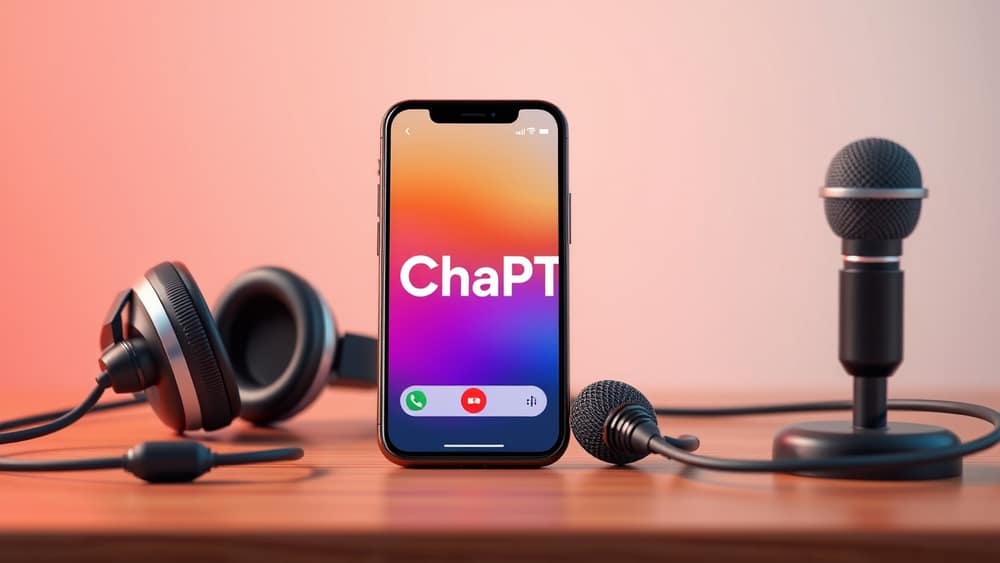
How to Use Voice Mode in ChatGPT on Your Phone (Step by Step)
You’re halfway through cooking dinner when you remember you need to check tomorrow’s meeting time. Instead of washing your hands to type, you tap your phone and say, “Hey ChatGPT, what’s on my calendar tomorrow?” and keep stirring the pot. That’s the power of voice mode — turning your phone into a hands-free helper whenever your hands are busy.
ChatGPT’s voice mode lets you talk to the AI like you would to a friend, and it talks back. It’s not just for sending messages anymore. You can use it to read out emails while you’re driving, brainstorm ideas while walking the dog, or even practice a language out loud without feeling self-conscious. And it’s built right into the standard ChatGPT app — no extra downloads needed.
Below is a simple, step-by-step guide to setting it up and using it naturally in your daily routine.
Getting started with voice mode
Before you can talk to ChatGPT, you need to turn on voice mode. Here’s how:
- Open the ChatGPT app on your phone.
- Tap your profile icon (top right corner).
- Go to Settings → Voice & Audio.
- Toggle Voice Conversation to On.
- Choose your voice — you’ll hear a sample to pick the one you like best.
That’s it. Now you’re ready to use voice mode.
💡 What is voice mode? It’s a way to talk to ChatGPT instead of typing. The AI listens, processes your words, and responds out loud — like a conversation with a helpful assistant.
How to start a voice chat
Once voice mode is on, you can begin a voice conversation in two ways:
Option 1: Tap the microphone
- Open the ChatGPT app.
- Tap the microphone icon at the bottom of the chat screen.
- Start talking — ChatGPT will listen and respond.
Option 2: Use “Hey ChatGPT”
- Say out loud: “Hey ChatGPT” (make sure your phone is unlocked and the app is open in the background).
- ChatGPT will wake up and say, “How can I help?”
- Then ask your question or give your instruction.
⚠️ Tip: If “Hey ChatGPT” doesn’t work, check your phone’s microphone permissions. Go to Settings → Privacy → Microphone and make sure ChatGPT has access.
Practical ways to use voice mode every day
Here are a few real-life ways to use voice mode without changing your routine:
- While cooking or cleaning: Ask ChatGPT to read out your shopping list, explain a recipe step, or set a timer.
- On a walk or commute: Summarise your emails, brainstorm ideas for a project, or practice speaking a new language.
- In the car: Ask for directions, check the weather, or play a podcast summary — all hands-free.
- Before a meeting: Quickly rehearse what you want to say or get a quick summary of your notes.
🎯 Example: You’re driving and say, “Hey ChatGPT, what’s the weather like today in Sydney?” ChatGPT replies: “It’s 18°C and cloudy in Sydney today. You might want a light jacket.” No need to look at your phone — just listen and focus on the road.
Wrap-up
Voice mode in ChatGPT turns your phone into a friendly, hands-free assistant that fits into your daily life. Whether you're cooking, driving, or just want to talk instead of type, it’s ready to help. Try it today: open the app, tap the microphone, and say, “Hey ChatGPT, what’s on my calendar tomorrow?” You’ll wonder how you ever managed without it.