 AI WORLD HQ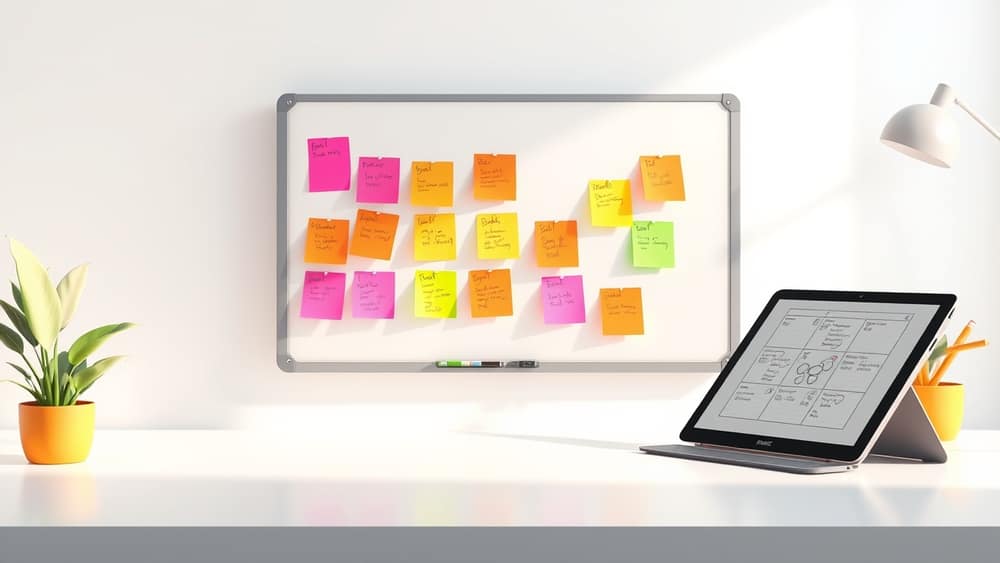
How to Use AI Workspaces to Organise Your Ideas Visually
Do you ever feel like your best ideas get lost in a sea of chat messages or scattered notes? Imagine a digital space where you can not only chat with an AI but also visually arrange, connect, and expand on those conversations. That's exactly what AI workspaces – often called "canvases" – offer, helping you bring order and clarity to your thoughts.
What is an AI Workspace or Canvas?
Think of an AI workspace as your own interactive digital whiteboard, but supercharged with artificial intelligence. Instead of just typing commands into a chat window, you get a visual area where you can literally lay out your ideas, documents, and the AI's responses side-by-side. You can drag and drop different "elements" (like text notes, images, or even specific AI commands) and connect them to create a flowing picture of your project or thought process.
This visual approach is incredibly effective because it moves beyond linear conversations. You can see how different pieces of information relate, easily reorganise your thoughts, and even direct the AI to work on specific parts of your project in a structured way. It’s like turning a messy desk into a perfectly organised project board, with the AI helping you fill in the details.
How These Visual Workspaces Function
Typically, an AI workspace lets you start with a blank canvas. You might begin by typing an idea into a "node" (a small box or element on the canvas) – for example, "Plan my next holiday to the Gold Coast." From there, you could:
- Brainstorm: Drag out another node and ask the AI to suggest "Top 5 family-friendly activities in the Gold Coast." The AI generates a list directly into that new node.
- Expand: Create another node and tell the AI to "Outline a day trip itinerary for one of those activities."
- Connect: Visually draw lines between your main idea, the activities list, and the day trip plan to show how they all fit together.
- Refine: You can then feed the AI's output from one node into another for further analysis or generation. Perhaps you ask the AI to "Summarise the main points of this itinerary" in a fresh node.
This "drag, drop, and connect" method lets you build complex workflows (sequences of tasks) and visualise your entire project in a way that a simple chat window can't. You're not just getting answers; you're building a dynamic, interactive knowledge base.
Practical Ways to Use AI Canvases
- For Brainstorming Sessions: Whether you're planning a birthday party or a business strategy, start with a central idea. Use the AI to branch out with different categories, questions, or solutions, all laid out visually. This helps you explore many angles without losing track.
- Project Planning & Management: Break down large projects into smaller, manageable steps. Each step can be a node, with the AI providing details, potential challenges, or resource suggestions. You can then rearrange these steps easily as your plan evolves.
- Learning and Research: Tackling a new subject? Use a canvas to map out key concepts, definitions, and relationships. Ask the AI to summarise complex articles into concise nodes, or even to generate flashcards based on your layout.
- Content Creation: Outline a blog post, video script, or even a novel. Use the AI to generate topic ideas, write drafts for specific sections, or develop character backstories – all visible on your creative canvas.
Wrap-up
AI workspaces offer a powerful, visual way to interact with artificial intelligence, helping you transform chaotic thoughts into clear, actionable plans. By moving beyond simple chat interfaces, these canvases empower you to connect ideas, streamline workflows, and tackle complex tasks with greater clarity and efficiency. Why not try mapping out your next big idea on an AI canvas and see how it helps bring your vision to life?