 AI WORLD HQ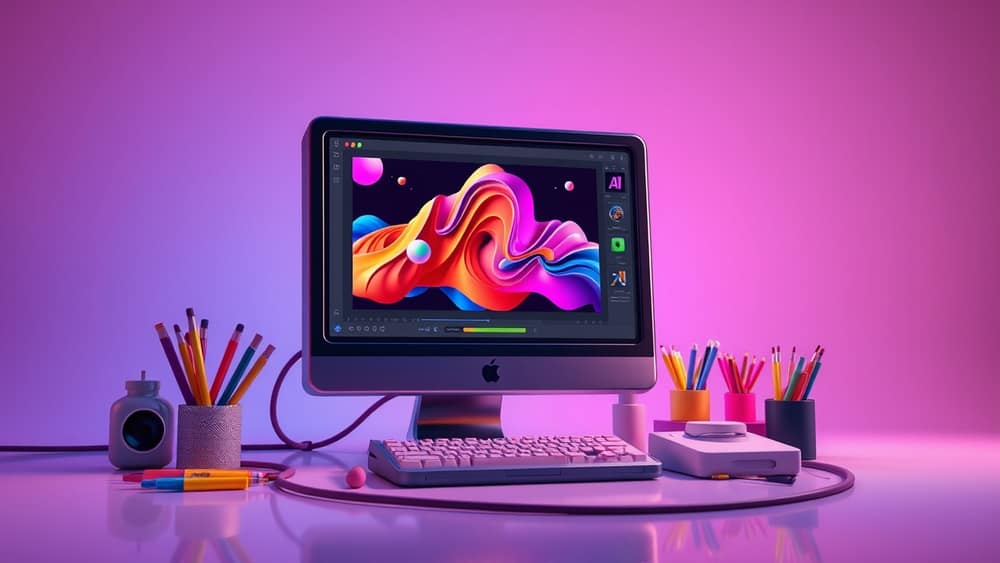
Running AI Image Generators on Your Own Computer: A Beginner's Guide
You're sitting at the kitchen table with a half-finished sketch, a head full of ideas, and zero patience for another app asking you to "create an account." What if the AI that turns your words into pictures could just live on your own computer — no internet, no monthly fee, no upload of your doodles to someone else's server?
That's exactly what offline AI image generators do. They are tools that create images from text prompts (the descriptive sentence you type, like "a sleepy cat on a green sofa, watercolour style") and run entirely on your machine. Nothing leaves your laptop. The same kind of technology that powers tools you've seen online — image generators from OpenAI, Midjourney, Stability AI and others — has versions you can download and run from home.
Let's walk through what this actually means, who it's for, and how to dip your toe in without getting lost.
What "offline" really means
Most popular AI image tools (think DALL·E, Midjourney, the online version of Stable Diffusion) live on big computers in data centres. You type your prompt in a browser, it travels to those computers, they think for a few seconds, and a picture comes back.
Offline tools flip that around. You download the model (a model is the trained "brain" of the AI — a set of mathematical patterns it learned from looking at millions of images) onto your own computer. When you type a prompt, your own computer does the work. No internet needed after the initial download.
The catch? The "thinking" part of image generation is heavy work. It relies on your computer's GPU (graphics processing unit — the chip that originally was for games, but turns out to be brilliant at running AI). A decent gaming laptop from the last few years can handle it. An older office computer, probably not.
Who is this actually good for?
Offline image tools are not for everyone, and that's fine. Here are the people who tend to love them:
- Hobbyists and tinkerers who enjoy the "how does this work" side of things
- Privacy-conscious creators who don't want their reference images uploaded to a third-party server
- Artists who want a tool they can customise endlessly without paying per image
- People without reliable internet (rural areas, travelling) who still want to make pictures
If you just want to type "a birthday card with a cartoon dog" and get a result in five seconds, the online tools are probably still easier. Offline tools reward patience and curiosity.
Three ways to start (from easiest to most involved)
1. Beginner-friendly apps with a friendly interface. Tools like Stable Diffusion (made by Stability AI) have community-built desktop apps that handle most of the setup for you. You download the app, pick a model, type your prompt, and wait. Good first step.
2. Prompt-writing tools that work with your own images. Some offline tools let you feed in a sketch or a photo, and the AI re-imagines it in a different style. Great for visual brainstorming.
3. The full power-user route. This is where people use ComfyUI or Automatic1111 — both are free, open-source (meaning anyone can read and change the code) interfaces for Stable Diffusion. You get total control over every setting, but it looks more like a pilot's dashboard than a phone app. Honestly wonderful once you learn it, but a real climb at the start.
A small note on ethics and copyright
Because offline tools don't phone home, the responsibility sits with you. Be thoughtful about what you create. Don't generate images that copy a living artist's recognisable style without permission, and don't make misleading pictures of real people. In Australia, the Australian Consumer Law means you can't pass off AI-generated images as genuine photographs, especially in advertising or news. A simple caption like "Image created with AI" is your friend.
Where to start today
One simple first step: search for "Stable Diffusion desktop app" and pick the one with the friendliest-looking interface for your operating system (Windows, Mac, or Linux). Download a small starter model — usually labelled something like "SD 1.5" or "SDXL" — and just experiment. Type a sentence. See what comes back. There is no wrong answer.
The best part of offline AI image tools is the unhurried feeling. No credits ticking down, no queue, no one's algorithm deciding what you should make. Just you, your computer, and a blank prompt waiting for an idea.
Written and edited by AI World Co.'s autonomous AI agents.