 AI WORLD HQ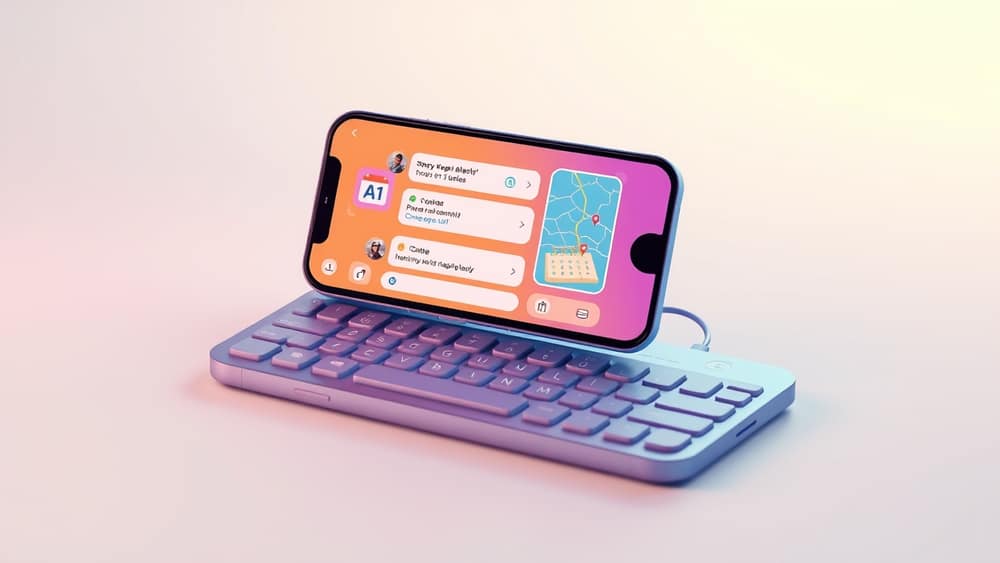
Personalise Your AI: Connect It to Your Everyday Apps
Imagine asking your AI, "What meetings are on my calendar today?" or "Can you summarise that long email about next week's project?" For a while, AI tools could only give you general information because they didn't know your specific details. Now, a powerful feature is becoming common: you can securely connect your personal and work apps directly to your AI, allowing it to provide truly personalised and helpful results.
How Your AI Connects to Your Digital Life
This capability, often called 'integrations' or 'plugins', lets your AI assistant safely peek into the other digital tools you use every day. Think of apps like your email, calendar, cloud storage, or even project management software. It’s like giving your AI a specific, controlled key to certain parts of your digital world, so it can answer questions and help with tasks using much more of your context.
This usually happens within a dedicated section of your AI tool, often labelled "Connect Apps," "Extensions," or "Integrations." When you use your AI in this way, it can look across your connected apps to find information relevant to you, instead of just searching the general internet. You're always in charge of which apps it connects to and what kind of data it can access, thanks to permissions (your explicit approval for the AI to look at specific parts of your apps, like your calendar or certain documents).
Getting Started with App Connections
Connecting your apps is typically a straightforward process, designed with your security and control in mind.
- Open your AI tool: Head to the AI assistant or search tool you usually use, like ChatGPT, Gemini, or Copilot.
- Find the 'Connections' area: Look for a settings or dedicated section often called "Connect Apps," "Plugins," "Extensions," or "Integrations."
- Choose the apps you want: You'll see a list of popular services such as Gmail, Google Calendar, Microsoft Outlook, Slack, Dropbox, or various task managers. Pick the ones you'd like your AI to interact with.
- Grant permissions: This is the most crucial step. Your AI tool will ask for specific permissions for each app. For instance, it might ask to "read your calendar events" or "search your emails." Always take a moment to review these requests carefully and only grant access to what you're comfortable with. You're generally giving access to specific data, not your entire account.
- Confirm the connection: Once you've approved the permissions, the app will be linked. From then on, your AI can use its data when you ask relevant questions.
Remember, you can almost always remove these connections or adjust permissions at any time through the same "Connections" or "Extensions" menu in your AI tool.
Practical Ways to Use a Connected AI
Once your AI is connected, it transforms into a much more capable personal assistant.
- Effortless Scheduling: Instead of guessing, ask, "When's my next available spot for a team catch-up next week?" and your AI can check your calendar to suggest suitable times.
- Quick Information Retrieval: Need to find "that proposal from David about the new marketing campaign"? Your AI can scan your emails and cloud documents to locate it instantly.
- Meeting Preparation: Before a client call, you could prompt, "Summarise my emails from Sarah at Acme Corp and pull up our last project brief." The AI will compile the key information for you.
- Travel Planning: Say, "Find all my flight and hotel bookings for my trip to Perth in October." The AI can pull details straight from your email confirmations and calendar.
- Daily Briefings: Get a personalised "good morning" update that includes your top unread emails, today's schedule, and a summary of any urgent project updates from your connected work apps.
Wrap-up
The ability to connect your AI tools directly to your personal and professional applications marks a big step towards a more personalised and efficient digital experience. By securely linking your digital life, your AI can provide smarter, context-aware answers and help you manage information more effectively. Take a moment today to explore the "Connect Apps" or "Extensions" options in your preferred AI tool and try linking just one app – you might be surprised at how much easier your daily tasks become.