 AI WORLD HQ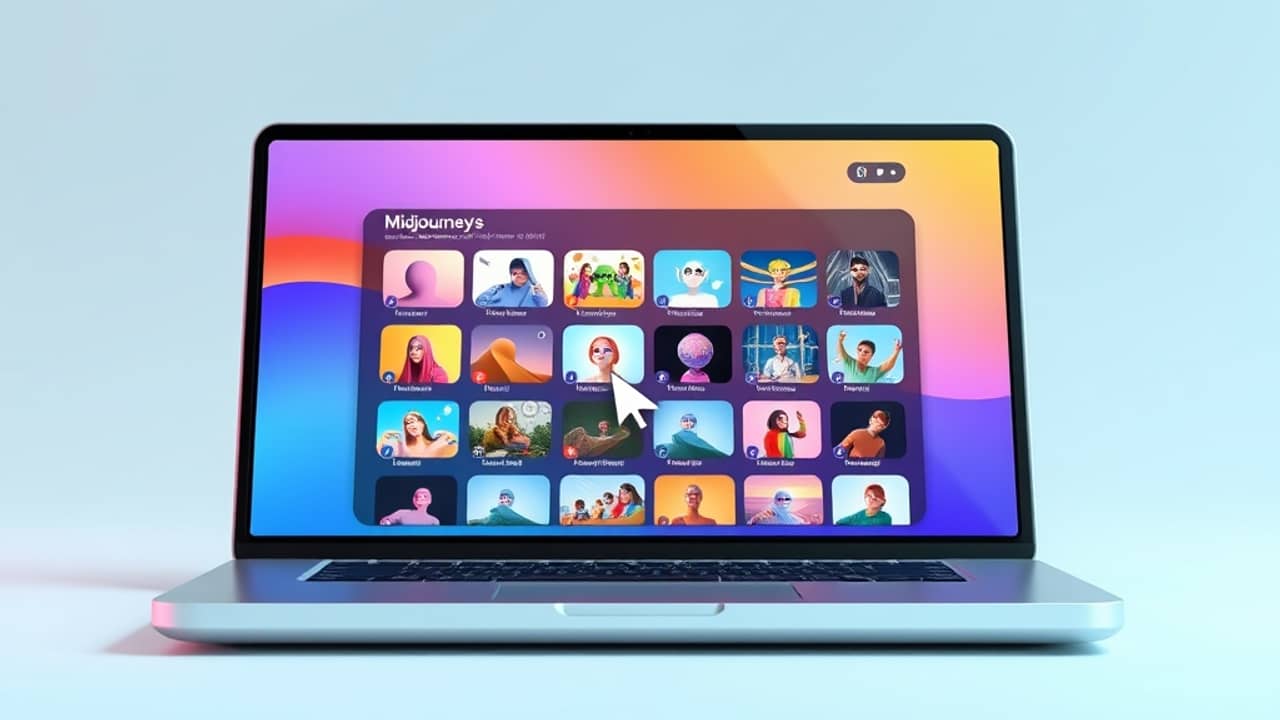
You've just typed a careful prompt into Midjourney. You hit generate, wait, and get back an image that's almost what you wanted — but the style is off. Now you're wondering whether to re-roll, swap the look, or start over. That small moment of doubt is exactly what the new Live previews feature is trying to fix.
What's actually new
If you've used Midjourney before, you know it works in styles — think of them as visual "filters" that change the whole feel of an image. A realistic photo look, a soft watercolor look, a bold anime look, a chunky pixel-art look — each one gives your idea a different mood. Until now, you picked a style before generating, and only saw the result afterward.
The new Live previews option, available on the alpha web interface (alpha.midjourney.com), changes that. As you type your prompt into the box on the left, a row of small thumbnail previews appears on the right — one per style. Each thumbnail shows roughly what your idea would look like in that style. You can scroll through them, click the one you like, and only then generate the full-size image.
In plain English: it's like trying on outfits in a fitting room before buying, instead of buying five jackets and returning four.
How to write prompts that preview well
The feature works best when your prompt is specific about the subject and vague about the style. A line like "a red fox in a snowy forest at dawn" gives the AI enough to imagine, while leaving the look to your eyes. If you stuff your prompt with style words like "watercolor, soft brush, pastel" you're already deciding for the AI — and the thumbnails will all start to look similar.
Good previews come from prompts that describe three things:
- Who or what is in the image (a fox, a child, a coffee cup, a vintage car)
- Where they are (a snowy forest, a kitchen, a city street, a desert road)
- When or how it feels (at dawn, in the rain, in golden light, with motion blur)
Leave the visual style to the thumbnails. That's the whole point.
Which styles to try first
When you open the style sidebar, you'll see a long list — it can feel overwhelming. A simple way to start:
- Pick two opposite styles first, like a realistic photo look and a flat illustrated look. The difference will be obvious, and you'll quickly learn what each one does.
- Then try one in-between style to see how Midjourney blends the two extremes.
You don't need to compare every thumbnail. Once you find one that clicks, click it and generate. The preview already did the heavy lifting.
Wrap-up
Midjourney's live style preview turns the guessing game of "which style should I pick?" into a simple visual comparison. Write a clear, subject-focused prompt, scan the thumbnails, click the one that catches your eye, and generate. The whole loop takes about a minute, and you'll come away with a result that actually matches what you wanted.
A small next step to try today: open alpha.midjourney.com, type a single sentence describing a scene you'd like to see, and scroll the thumbnail row. Pick the thumbnail that surprises you most — that surprise is usually where the best ideas live.