 AI WORLD HQ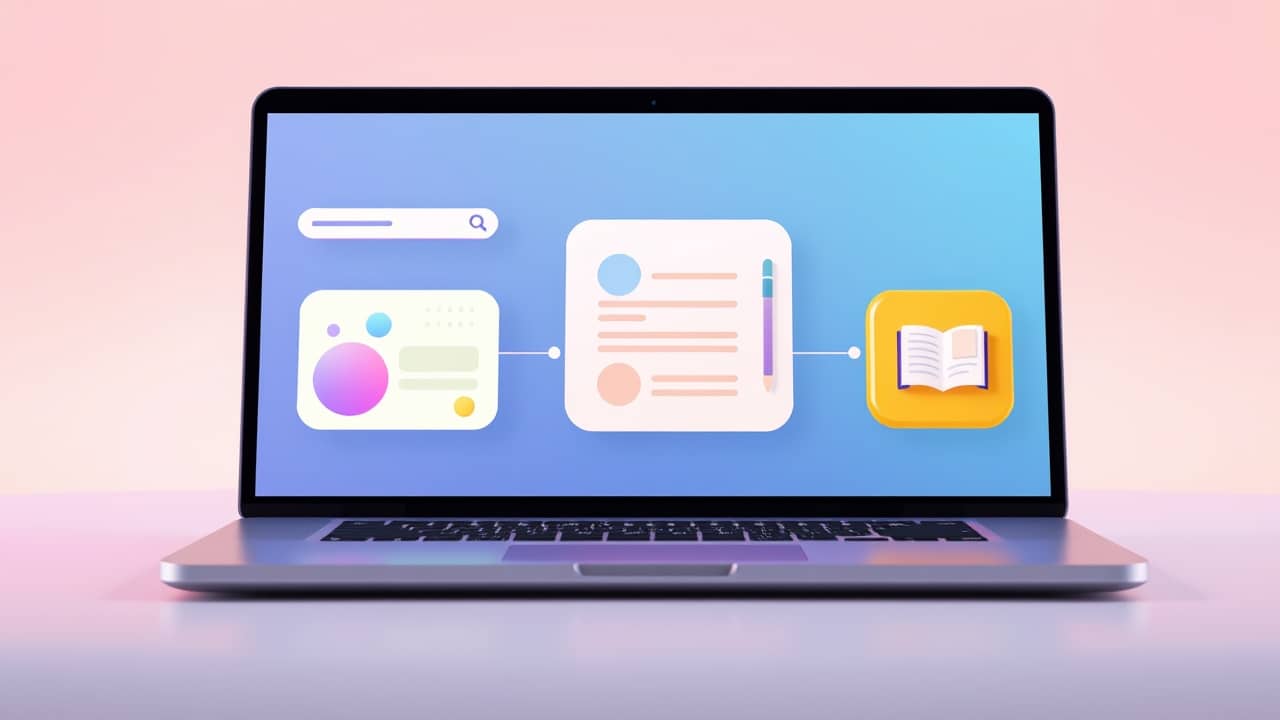
You've got a half-formed idea, a folder of mixed notes, and a deadline breathing down your neck. The newest wave of Microsoft 365 Copilot tools is built around that exact moment — moving work from "scattered" to "polished" without you babysitting every step.
The shape of the workflow
The four tools are designed to hand work to each other. Researcher pulls information in from your files, the web, and your work apps. Copilot Pages holds the raw findings somewhere you and others can shape them. Notebooks gives you a workspace to think out loud with the AI. Create turns the shaped idea into something you can actually share.
You don't need to use all four every time. The point is they fit together, and skipping the right one is what slows people down.
Researcher — your starting point
Researcher is the tool you open when you're staring at a topic and don't know what's in your own files about it. Ask it something like "what do we actually know about customer complaints this quarter?" and it searches your email, Teams chats, SharePoint documents, and the web at the same time. It returns a draft answer with the sources listed, so you can see where each claim came from.
It's most useful when your question spans more than one place. If the answer is sitting in a single document you already know about, just open that document.
Copilot Pages — where the draft lives
Think of Pages as a shared canvas (a digital workspace you and others can write on together) that Copilot helps fill in. Once Researcher has produced a draft, you can send it straight into a Page. There, you edit the wording, drop in your own notes, and invite teammates to add their bits alongside yours.
The shift here matters: the AI gives you a starting point, but the final document is yours to shape. You're not handing over the work — you're handing over the blank-page problem.
Copilot Notebooks — thinking out loud
Notebooks is closer to a research diary. You dump in source material — PDFs, meeting notes, web links, slides — and then ask questions across all of it at once. "What did we actually decide about the launch date?" or "summarize the customer interviews about pricing" both work.
This is the tool for the messy middle of a project, before you know what shape the output should take.
Create — turning the idea into something real
Create is the step where the document, slide, or other output actually gets built. Give it a prompt like "turn this Page into a 5-slide deck for the leadership meeting" and it generates a draft you can then edit and polish.
The honesty check: the polish still needs a human. The AI gets you most of the way there; the rest is your judgement, your voice, and the small details only you know.
One thing to try this week
If you've got a Microsoft 365 Copilot license, open Researcher on the next question that lives across more than one app — a meeting recap, a policy lookup, a summary of customer feedback. See what it pulls together. That's the smallest possible test of the workflow, and it's the one most likely to surprise you with how much of the busywork it quietly removes.