 AI WORLD HQ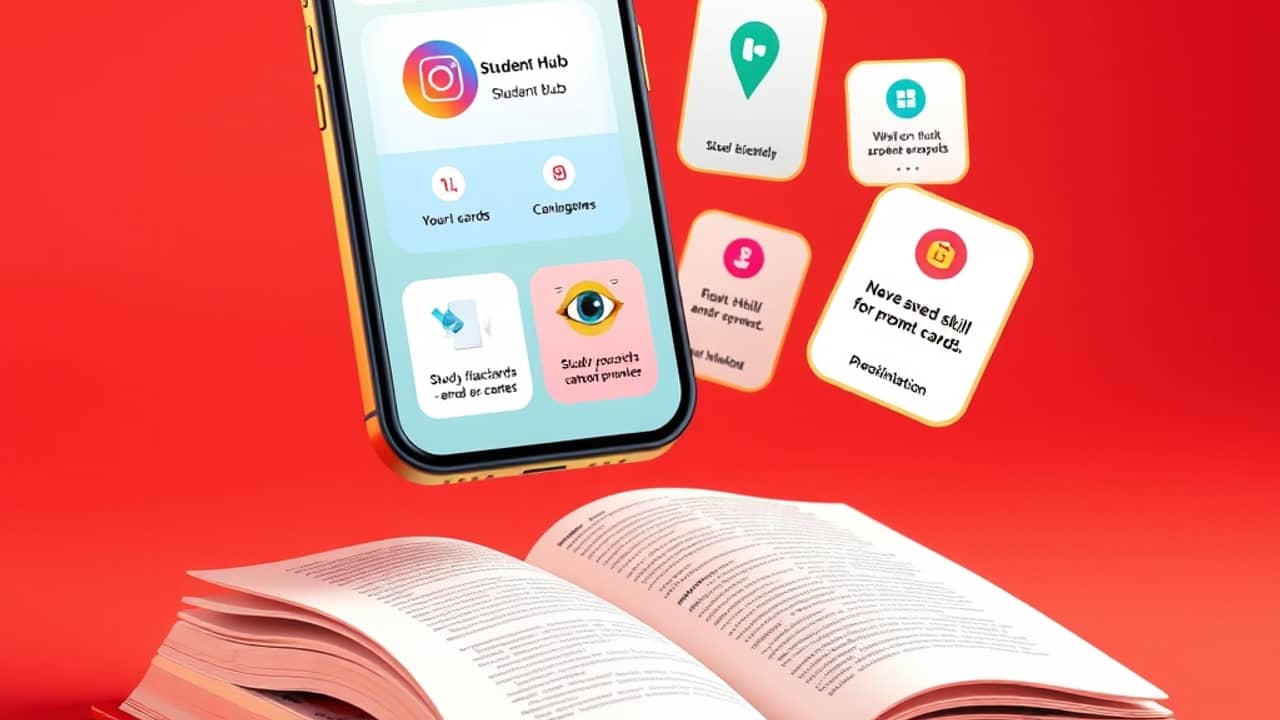
If you've ever sat down to study and spent more time figuring out how to use your AI helper than actually learning, Google's latest Gemini changes are aimed squarely at you. Two separate updates, both with a learning flavor, just landed — and together they make Gemini more useful for homework, class prep, and self-study. Here's what's new, and how to actually find each feature.
What the student hub is
The Gemini student hub is a single place inside the Gemini app that gathers Google's learning tools. According to Google, students can use it to:
- Start a study notebook
- Create flashcards
- Take a practice quiz
- Access any new learning tools Google adds in the future
Think of it as a front door. Instead of hunting through the menu every time you want to quiz yourself, you go to one spot and everything study-related is right there.
What "skills" are
Skills are reusable instructions — short, saved prompts (a prompt is just the text you type to an AI) — that you can apply to any conversation with Gemini. Google gives two examples in its announcement:
- A brand voice skill that helps you draft blog posts in a consistent tone
- A lesson planning skill that helps speed up class prep
You can use more than one skill in the same chat, or layer them in at different points. According to Google, skills are rolling out to Workspace users over the coming weeks, and they will eventually replace Gems — the older feature that did something similar.
One small gotcha Google flags: skills do not currently sync between the Gemini app and Workspace apps. If you want the same skill in both places, you have to create it twice.
How to open the student hub
Before you start, a quick check: the student hub is available to personal Google account holders globally and to Google Workspace for Education users of all ages — but it is not available in the European Economic Area (EEA). If you are in the EEA, this part of the guide won't apply to you yet.
- Go to the student hub directly. Open
gemini.google.com/studentsin your browser. You will land inside the hub, where the study notebook, flashcards, and practice quiz tools live. - Or find it in the Gemini app menu. Open Gemini, look at the menu (the list of options inside the app), and select Students. The same set of tools will appear.
- Sign in with the right account. If you use both a personal Google account and a school Workspace account, make sure you're signed in to the one you want to study with before you open the hub.
If you're a Workspace admin, the Gemini app and the student hub are controlled by the Generative AI settings in the Workspace Admin console — so if your students can't see it, that's the first place to check.
How to try a skill
Skills are still rolling out, so what you see may depend on your account. Here's the general flow, based on how Google describes it:
- Open the Gemini app (or a supported Workspace app like Google Docs).
- Look for the skills option in the prompt area — Google has been adding a skills entry point where you normally type your prompt.
- Pick a built-in skill to start with. Rather than writing one from scratch, browse what Google offers. A "lesson planning" skill, for example, would shape every response to fit that task.
- Try it on a real task. Type a prompt the skill is meant for and send it. You'll know the skill is working when the response follows the structure or tone the skill is built around — for instance, a lesson plan skill should return a formatted plan rather than a generic essay.
- Stack a second skill if it helps. If you also have a "concise" skill, you can apply it on top, in the same chat, to tighten up the output.
A few practical use cases
- Quiz yourself before a test. Open the student hub, start a practice quiz on the topic you're revising, then save a "study coach" skill that asks you to explain your wrong answers back in your own words.
- Speed up class prep. If you teach, a lesson planning skill turns a one-line prompt ("plan a 45-minute lesson on photosynthesis for 6th graders") into a structured outline — every time, without retyping the same instructions.
- Keep your voice consistent. A brand voice skill (or a "personal writing" version) helps you write essays, blog drafts, or emails in the same style, so you don't have to think about tone.
Common mistakes to avoid
- Expecting the student hub to appear in the EEA. It isn't there yet, according to Google's rollout note.
- Creating the same skill twice on purpose. Right now skills don't sync between the Gemini app and Workspace apps, so if you only need it in one place, make it there.
- Writing long, complicated skill prompts. Skills work best when the instruction is short and specific — "always end with three quiz questions" beats "be a helpful study assistant who does many things."
- Forgetting which account you're signed into. The student hub and skills behave differently across personal, Workspace, and Workspace for Education accounts.
Wrap-up
Two updates, one direction: Google is tidying up how people learn with Gemini. The student hub puts the study tools in one place, and skills let you save the instructions you keep retyping. Pick one — the hub if you're a student, skills if you teach or write — and spend ten minutes this week trying it. That's all the setup it takes to know whether it earns a permanent spot in your study routine.