 AI WORLD HQ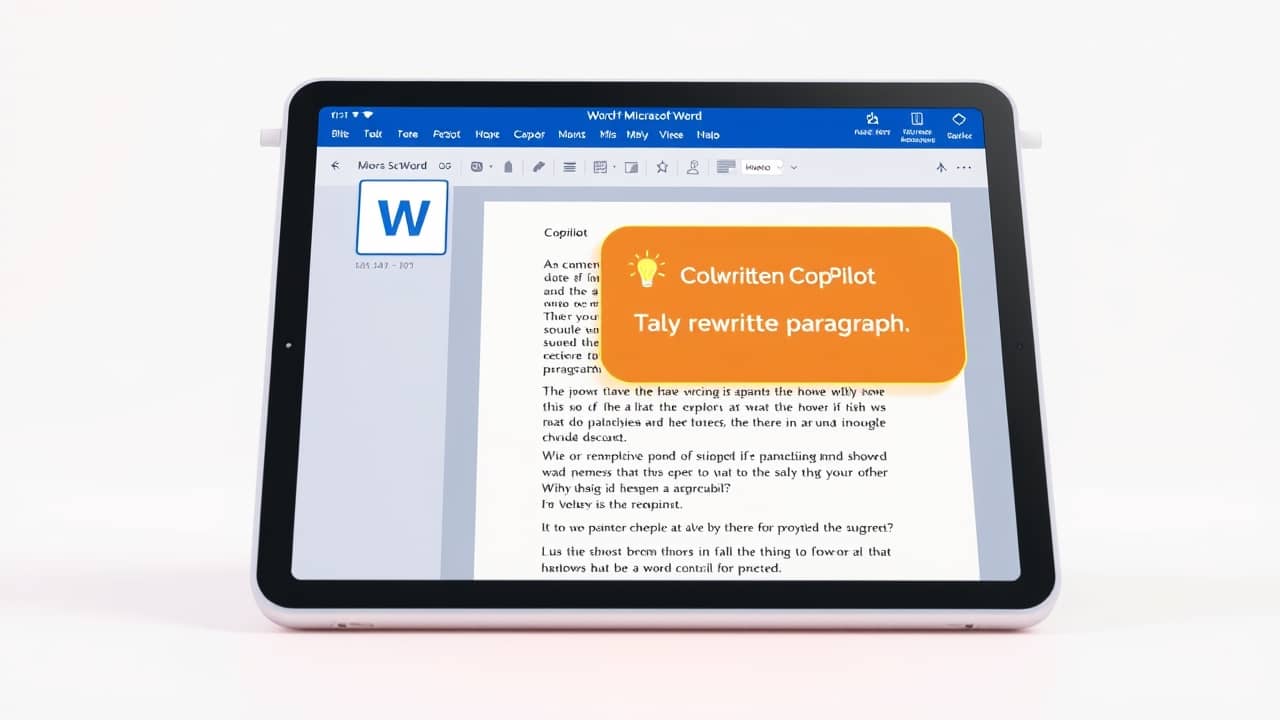
Sitting on the train with a half-finished report. Pulling out the iPad to finish the last paragraph before a meeting. Reaching for a tab on the train home to polish a memo you started on the laptop that morning. Word on iPad used to be fine for reading, less fine for actually writing — the moment you needed real help, you ended up reaching for a computer. Microsoft has now put Copilot (its built-in AI assistant) directly inside Word on iPad, so the tablet can do most of what the desktop can.
Here's how to get started, step by step.
Before you start: what you need
Before opening the app, check that you have these in place. Nothing worse than getting to step 4 and finding out you're stuck.
- An iPad running a recent version of iPadOS. Microsoft doesn't always spell out the minimum, so update iPadOS if you can — this avoids weird glitches.
- The latest version of Microsoft Word for iPad. Open the App Store, tap your profile icon in the top right, and update Word if it appears in the list. The new Copilot features need the most recent build.
- A Microsoft 365 subscription that includes Copilot. Copilot isn't part of the free tier. You typically get it through a Microsoft 365 Personal or Family plan with Copilot added, or through many business/work plans (Microsoft 365 Business Premium, for example). If you only see a "Try Copilot" prompt with a paywall, that's why.
- A document saved to OneDrive. Copilot works best on documents stored in the cloud (OneDrive is Microsoft's online storage — think of it as a hard drive that lives on the internet), because that's where the AI can safely make changes without breaking things on your device.
Once those four are sorted, you're ready.
Step 1 — Open your document and find the Copilot button
Open Word on your iPad, then open the document you want to work on. Look at the Home tab (it's the first icon along the bottom ribbon on iPad — the row of buttons at the bottom of the screen). You'll see a new Copilot icon, usually a stylised four-pointed star or sparkle shape, depending on your version.
Tap it once. A side panel slides in from the right — this is the Copilot pane (a chat-style sidebar where the AI lives while you work). You'll know it worked when you see a text box at the bottom of the panel with a prompt like "What would you like Copilot to do?"
Step 2 — Try a quick rewrite first
Before tackling anything big, run a small test so you can see how Copilot handles your document. In the Copilot pane, tap the text box and type something like:
💬 "Rewrite the second paragraph in a more conversational tone."
Hit send. Copilot will read the paragraph and offer a rewritten version directly in your document — usually highlighted or underlined so you can see what changed. Tap Keep it if you like the rewrite, or Discard if you don't. You can also leave it for now and decide later.
A good first test teaches you how the AI handles your particular writing style — some are more chatty by default, some are quite formal.
Step 3 — Generate new content from a prompt
This is where Copilot really earns its keep: drafting something from scratch based on a few sentences from you. Tap inside the document where you want the new text to appear, then open the Copilot pane.
Type a clear instruction. For example:
💬 "Write a 150-word introduction for a project update to the leadership team. Cover the main goal, current progress and next steps. Keep it professional but not stiff."
Copilot will draft the text right into the document at your cursor. Read it through, keep the bits you like, and edit the rest. The trick is to treat the first draft as a starting point, not a finished product — you'll always want to add your own voice.
You'll know it worked when new paragraphs appear at your cursor, and Copilot shows you options to Keep, Regenerate (try a new version) or Discard.
Step 4 — Use Copilot to restructure a messy draft
Most documents don't need more writing — they need reorganising. Tap into a document you've been struggling with, open the Copilot pane, and try:
💬 "Suggest a clearer structure for this document. Add headings where it makes sense and group related points together."
Copilot reads the whole document and proposes a new outline, applying Word's built-in styles (named formatting presets like "Heading 1" or "Body Text" that control how text looks) so your formatting doesn't break. It won't move sentences around without telling you — it'll usually show you the proposed structure first, and you decide whether to accept.
This step alone has saved many people an hour of fiddling with bullet points.
Step 5 — Ask questions about your own document
Sometimes you don't want Copilot to write — you want it to summarize. Open the Copilot pane and ask:
💬 "Summarize this 8-page report into 5 bullet points for the executive team."
Or:
💬 "What are the key risks mentioned in this document?"
Copilot reads the file and answers in the chat pane. The summary doesn't replace reading the document, but it's a fast way to refresh before a meeting or pull the main points into a separate note.
You'll know it worked when the answer appears as plain text in the chat panel, referencing what's actually in your document rather than general knowledge.
Step 6 — Refine the tone of an existing section
Tone is the hardest thing to get right on a phone or tablet, because you can't easily bounce a paragraph off a colleague. Try this:
💬 "Make this section sound more confident without being aggressive. Keep the length roughly the same."
Copilot rewrites the section in place. Compare the before and after, keep what works, and adjust the rest. Over a few rounds, you'll start to learn which prompts produce the tone you actually want.
Common mistakes to avoid
- Skipping the OneDrive step. If your document is stored only on the iPad, Copilot may not be able to edit it in place. Move it to OneDrive first.
- Accepting the first draft blindly. Copilot writes quickly, but it doesn't know your reader. Always read what it produces and adjust.
- Forgetting the formatting. Copilot preserves Word's styles (the named formatting presets that control headings, body text, lists and so on) when you ask it to restructure, so your document should still look right. If formatting looks off afterwards, check that your styles are still applied — sometimes a long document with manual formatting confuses the AI.
- Asking for things Copilot can't do. It can read your document, but it can't reach out to email, your calendar, or the web from inside the iPad Word app the way it can on desktop. Keep your requests to what's actually in the file.
Wrap-up
Copilot inside Word for iPad turns the tablet into a more capable writing tool than it's been before — not because the AI is doing the writing for you, but because it handles the slow parts (reformatting, summarizing, drafting first versions) so you can spend your attention on the parts only you can do. Pick one document, run through the steps above, and see how it feels. The first ten minutes will tell you whether it earns a permanent spot in your workflow.