 AI WORLD HQ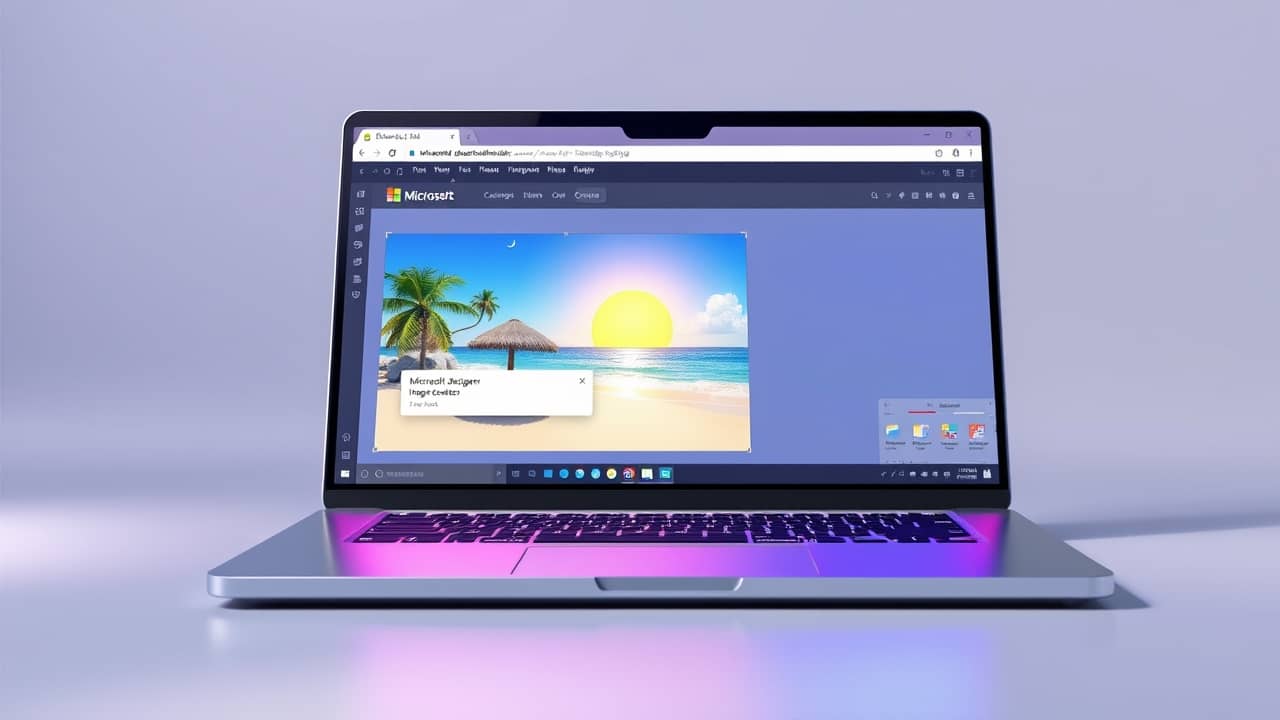
You're packing for a weekend trip and your camera roll is still full of last winter. The beach photos you wanted to share? You haven't taken them yet. AI image tools can fill that gap in a few minutes, and you don't need a camera or a design background to use them.
This guide walks you through creating your first summer image with Microsoft Designer's image creator, which is free and runs on the same image engine that powers ChatGPT's picture tool. Once you learn the pattern, the same prompts work in other AI tools too.
What you need before you start
- A Microsoft account — the same one you'd use for Outlook, Hotmail, or Xbox. It's free, and signing up takes about two minutes at
account.microsoft.comif you don't already have one. - A phone or laptop with a modern browser (Chrome, Edge, Safari, or Firefox).
- A rough idea of the scene you want — a beach, a city street, a sunset, a café. Don't worry about the words yet; we'll get to that.
Step 1 — Open Microsoft Designer's image creator
In your browser, go to bing.com/create (or designer.microsoft.com/image-creator). You'll land on a page with a text box at the top and example images below it.
💬 URL you can copy: bing.com/create
You'll know it worked when you see a prompt input box that says something like "Describe what you want to create."
Step 2 — Sign in with your Microsoft account
Click the Sign in or Join & Create button in the top corner. Enter your Microsoft email and password. If you don't have one yet, you can create a free account right on that page — it just needs an email and a password.
You'll know it worked when your name or profile picture appears in the corner and the prompt box becomes active.
Step 3 — Write your first summer prompt
A good summer prompt has three layers: place + mood + style. Skip any of them and the image often looks flat.
- Place is the scene — a tropical beach, a Paris sidewalk, a lakeside dock.
- Mood is the feeling — golden hour, lazy afternoon, fresh morning, romantic sunset.
- Style is the look — photorealistic, film photography, soft watercolor, vintage postcard.
Here are four starter prompts you can copy and paste:
💬 Beach: "Empty tropical beach at golden hour, turquoise water, soft shadows from palm trees, photorealistic, summer vacation mood" 💬 Travel: "Parisian sidewalk café in soft morning light, cobblestones, flowers in the window, warm film photography look" 💬 Vacation: "Friends laughing around a beach campfire at dusk, string lights above, candid photo style, warm tones" 💬 Sunset: "Two silhouettes watching a beach sunset, pink and gold sky, calm ocean, cinematic photo"
Type one into the box. You'll know it worked when the Create button lights up.
Step 4 — Generate, then refine if needed
Click Create. The tool usually takes 30–60 seconds and returns four images based on your prompt. Open the one you like best.
If none of them feel right, that's normal. Tweak the prompt and try again. A few small changes usually help:
- Swap "golden hour" for "harsh midday sun" to shift the whole feeling.
- Add "no people" if the scene is too crowded.
- Add "wide-angle lens" or "close-up" to control framing.
You'll know it worked when at least one of the four images matches the mood you imagined.
Step 5 — Save your image and share it
Click your chosen image to open it full-size, then look for the Download button. The file saves to your phone's camera roll or your computer's Downloads folder. From there, post it to Instagram, TikTok, Pinterest, or send it to a friend the same way you'd share any photo.
You'll know it worked when the file appears on your device and opens as a normal JPG or PNG.
Common mistakes to avoid
- "Beach" alone. A one-word prompt gives the AI almost no direction, and the result is usually generic. Always add a mood and a style.
- Forgetting the light. Lighting is the biggest difference between "stock photo" and "real moment." Words like golden hour, blue hour, overcast, or harsh noon change everything.
- Naming real people or brands. Saying "a celebrity at the beach" or a product name usually produces distorted or blocked results. Describe the idea instead — "woman in a sundress" works better than a name.
- Stopping at the first result. Four images come back each time for a reason. If one is close but not perfect, regenerate with a small tweak rather than giving up.
- Saving too small. If you plan to print or post at full size, look for the largest download option. Some tools offer a small preview and a high-resolution file separately.
Other tools worth trying
- ChatGPT (
chatgpt.com) — if you already have an account, just type "Create an image of…" in the chat. Free users get a few images per day; paid plans get more. - Midjourney (
midjourney.com) — known for richer, more cinematic images. It needs a paid subscription and runs through Discord or its own web app. - Adobe Firefly (
firefly.adobe.com) — built into Adobe's creative tools and trained only on licensed content, which can matter if you're publishing commercially.
The prompts above translate across all three with small wording tweaks.
Wrap-up
The fastest way to get good summer AI photos is to treat the prompt like a tiny recipe: place, mood, style. Pick one of the four starter prompts, paste it into Microsoft Designer's image creator, and generate. Tweak one word at a time when the result isn't quite right. By your third or fourth attempt, you'll start getting images that feel like yours.
Today's small step: open bing.com/create, paste the beach prompt, and save the first image you like. That's your first AI summer photo.